

Google Sheets is a free to use spreadsheet tool and a best alternative to Excel. It features all the essential functions and formulas. And, you can even create your own formulas to perform exactly what you need using Google Apps Script. This guide explain how to create custom functions in Sheets.
The good news is that you don’t need to be a coding wizard to create your own formulas in Sheets. If you can understand basic logic, you can write your own functions in Google Sheets.
With simple examples, you can learn how to create your own functions in Google Sheets.
Create Your Own Function in Google Sheets
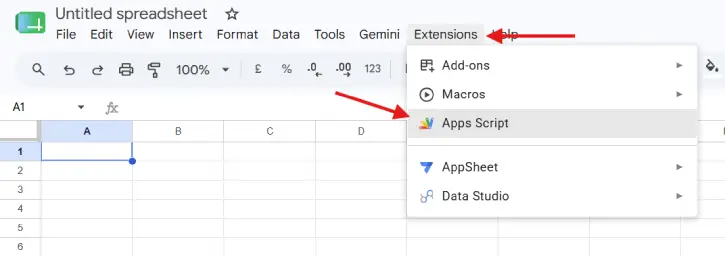
1. First, open your Google Sheet and go to Extensions > Apps Script. A new tab opens with the script editor.
2. Now, imagine you want a function that adds two numbers together. Enter below command in the script editor:
function ADD_TWO_NUMBERS(a, b) {
return a + b;
}
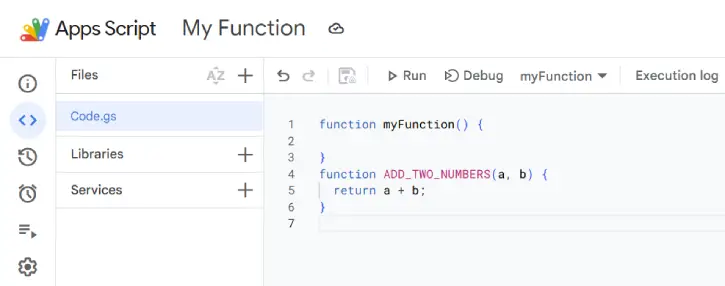
3. Click Save (or press Ctrl+S on Windows, Cmd+S on Mac), give your project a name, and you’re done.
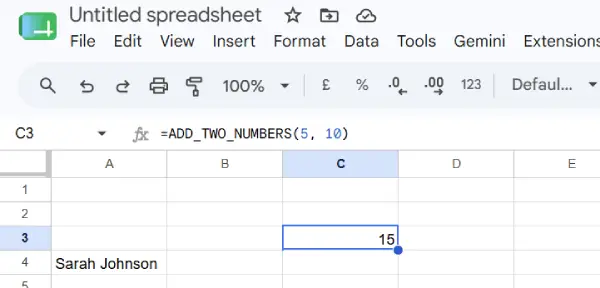
4. Back in your sheet to test your function. Type this into any cell: =ADD_TWO_NUMBERS(5, 10)
5. Press Enter. You’ll see 15. It means your first custom function works.
Below is another example function for combining numbers. For example, you have a spreadsheet with first names in one column and last names in another. You want a full name column without manually typing each one. Here is how to create a formula for it.
a) Open the script editor, and enter the below command.
function COMBINE_NAMES(firstName, lastName) {
return firstName + " " + lastName;
}
b) Save your custom function with a suitable name.
c) Now, to use it in your spreadsheet, enter below function:
=COMBINE_NAMES("Sarah", "Johnson")
Result: Sarah Johnson
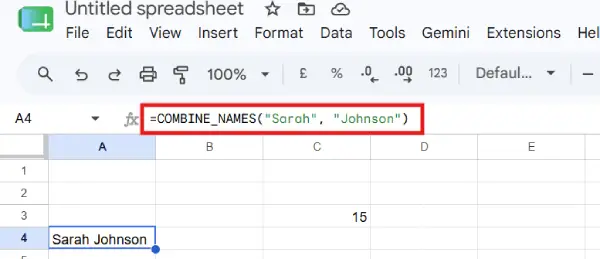
d) Done. No more copy-pasting names around.
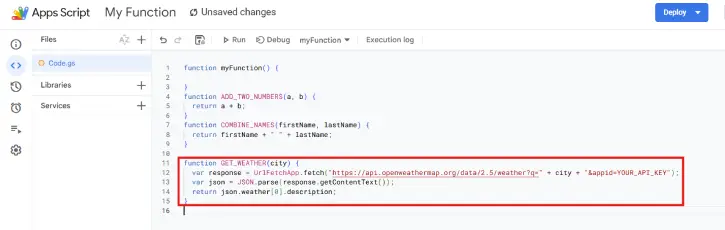
Below is another example of creating a custom formula. If for example, you want to track weather for different cities in your spreadsheet (maybe you’re running a business across multiple locations), you can pull real weather data straight into your sheet.
a) Open the App script editor and enter the command below.
function GET_WEATHER(city) {
var response = UrlFetchApp.fetch("https://api.openweathermap.org/data/2.5/weather?q=" + city + "&appid=YOUR_API_KEY");
var json = JSON.parse(response.getContentText());
return json.weather[0].description;
}
(Replace YOUR_API_KEY with your own key. You’ll need a free API key from OpenWeatherMap, but it takes two minutes to get one.)
b) Save your project with a name.
c) Now to use it in your sheet, type the below function
=GET_WEATHER("New York")
d) Your spreadsheet becomes live and dynamic. No manual updates needed.
Troubleshooting
Sometimes, your formula may not work as you think. But, Google Apps Script gives you tools to figure out what went wrong.
1. Use Logger.log() to see what’s happening:
function DEBUG_EXAMPLE(a, b) {
Logger.log(a + " plus " + b);
return a + b;
}
2. After running your function, go to View > Logs in the script editor. You’ll see exactly what your function is doing at each step.
3. Add error checking so your function doesn’t crash:
function SAFE_DIVIDE(a, b) {
if (b == 0) {
return "Error: Can't divide by zero";
} else {
return a / b;
}
}
4. Now if someone tries to divide by zero, they get a helpful message instead of an error.
Final Thought
Creating custom functions for Sheets aren’t complicated. They’re just JavaScript code that lives in your spreadsheet and does what you tell it to do. Once you see how powerful this is, you’ll find a dozen uses for it. The best thsing is that every complex formula you build is one less manual task eating up your day.

