

If you are looking to add a downloads button to Chrome’s toolbar, the latest version of the browser for desktop now allows you to do so. With the release of version 135, Chrome enables users to add a permanent Downloads button to their toolbar. This means you can access your downloads with just the click of a button.
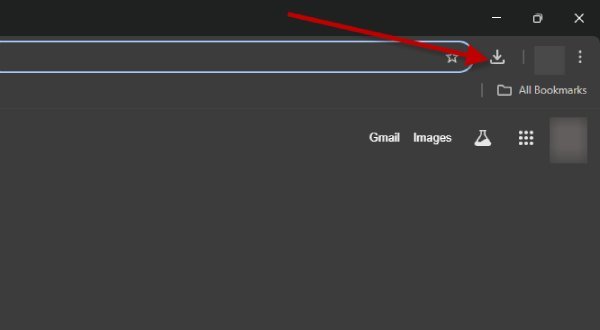
Previously, Chrome displayed downloads in a bar at the bottom of the browser, allowing users to easily open files as soon as they were downloaded. In the latest version of the browser the company added a ‘download bubble’ positioned in the top-right corner of the toolbar. This redesign provides more convenient access and prevents the download bar from blocking the web page you are currently viewing.
Also, the download bubble is only visible during an active download and vanishes after you restart the browser. To access your downloaded files after a restart, you need to press Ctrl+J to open Chrome’s ‘Download history’ and retrieve your files from there.
ALSO READ: What is QUIC Protocol and How to Disable it in Chrome
How to Add a Download Button to the Toolbar on Chrome for Desktop
1. First, update the Chrome browser for desktop to the latest version (as of this writing it is version 135).
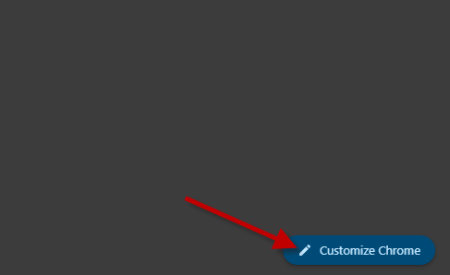
2. Launch Chrome and click the Customize Chrome button located at the bottom right corner of the New Tab page.
3. In the side panel that appears, select the Toolbar option and toggle on the Downloads feature.
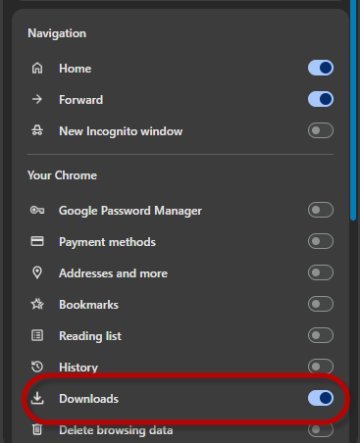
4. Once enabled, a Downloads button will appear on your browser’s toolbar, allowing you to easily access your ‘Download history’ with a single click.
5. If you wish to remove the button, simply right-click on it and select Unpin.
ALSO READ: How to Setup and Use Chrome Remote Desktop on Windows 11
That is all how to add the download button Chrome’s tool bar. Of course Chrome has a clean user interface by keeping the toolbar uncluttered and free of unnecessary options. However, this design choice requires users to navigate to the settings menu to access important features. For example, the lack of a dedicated download button in the toolbar can be inconvenient for those wanting to quickly retrieve their downloaded files after restarting the browser.

