

You can transform any website into an app and install it on your computer using the Progressive Web Apps (PWAs) feature of Chrome browser. Until recently, only a few websites, including Outlook, Google Drive, YouTube and X (formerly Twitter), have PWA support, but most sites haven’t yet added the option.
To address this, Google has introduced a universal web app installation feature in Chrome. This feature allows you to convert any website into an app. This guide let you know how to enable the Universal Web App Install option in Chrome, and convert any website into an app. You can use it on Windows, Mac, Linux, and Chrome OS.
What is Progressive Web Apps (PWAs)?
Progressive Web Applications or PWAs bring together web technologies such as HTML, CSS, JavaScript and WebAssembly to build applications. Although PWAs run on the web, they give users a feeling and functionality that’s almost identical, to that of native applications.
With PWAs you can start a website from your desktop or taskbar without first opening a browser. PWAs also work when you are offline and can send push notifications.
Although Chrome, Edge and Brave browsers support PWAs, the popularity of the technology has been limited by the lack of compatible sites. To make it universal, Google is testing a new feature in Chrome browser that lets you turn any website into a desktop app, whether it supports PWAs or not.
How to Enable Universal Web App Install Feature in Chrome?
1. Launch Chrome browser, type chrome://flags into the address bar and press Enter to load the Experiments page.
2. Type ‘Web App Universal Install’ in Experimental search box.
3. Click the Web App Universal Install dropdown menu, select Enabled and click Relaunch.
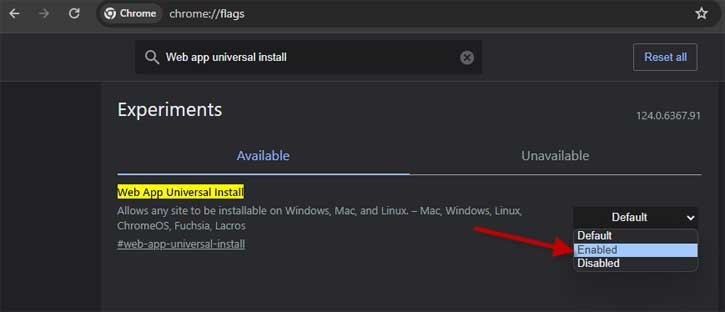
Note: This is an experimental feature of Chrome browser. It may or may not available in the future update
ALSO READ: How to Setup and Use Chrome Remote Desktop on Windows 11
How to Turn Any Website into a Desktop App?
1. When Chrome reopens, browse to a site you’d like to create an app.
2. Click the three-dot menu and choose ‘Cast, save and share’ option.
3. Select ‘Install page as app’ option.
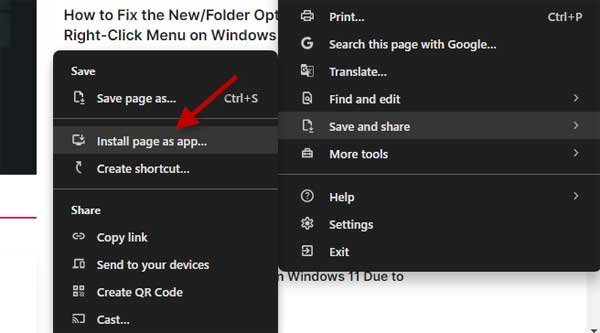
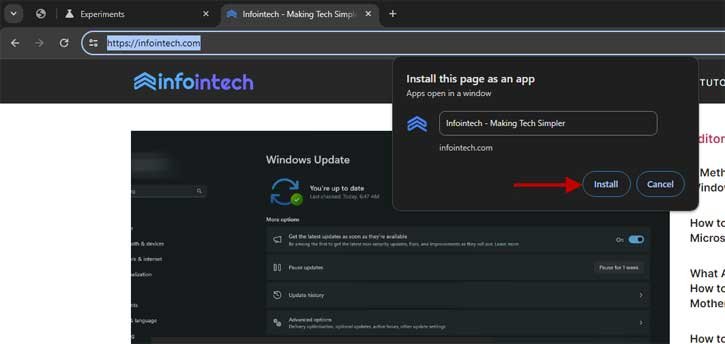
4. Next, click ‘Install [site name]’ to turn the site into a PWA.
5. It will add a shortcut to the app to your desktop and Start menu, and also offer to place one on your taskbar.
How to Uninstall a PWA App?
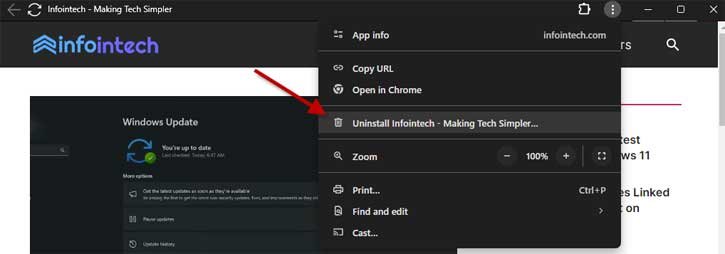
PWAs can be uninstalled in the same way as other Windows apps, or by clicking the three-dot icon on their toolbar and choosing the Uninstall option.
1. Launch the PWA app that you want to uninstall from your PC.
2. Click on the three-dot menu at the top right.
3. Choose Uninstall [site name] option.
That is about how to transform any website into an application. Faster access to websites and a feel of a native app are the main advantages of PWA (Progressive Web App).

