

Windows 11 has strong security features that help keep our computer safe from people who should not be accessing it. One of these features is called Secure Login. This feature helps protect our system from programs that try to copy the login screen to steal our password. When turn it on we have to press CTRL+ALT+DEL before log in. This adds safety to the process.
In this guide, we will look at how to turn on (and turn off) the login feature in Windows 11. There are two ways to turn on secure sign-in on your Windows computer. You can use the User Account settings or change the Local Security Policies. Both of these options make your system more secure.
How to Enable (or disable) Secure Login in Windows 11?
First Method: Via User Accounts
1. Press Win + R shortcut key to launch Run command box.
2. Type netplwiz in the run box and click OK.
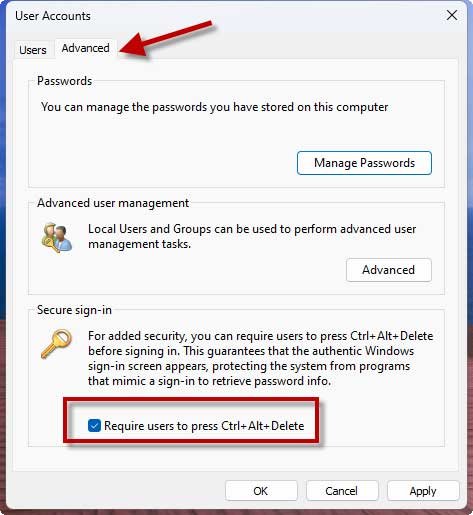
3. It will open User Accounts window.
4. In User Accounts, click Advanced.
5. Under Secure sign-in, check the option Require users to press CTRL+ALT+DEL. Click Apply and then OK.
ALSO READ: How to Enable Tamper Protection in Windows 11 for Enhanced System Security
Second Method: Via Local Security Policy
1. Press Win + R shortcut key to open Run command box.
2. Type secpol.msc in the search box and click OK.
3. It will open the Local Security Policy window.
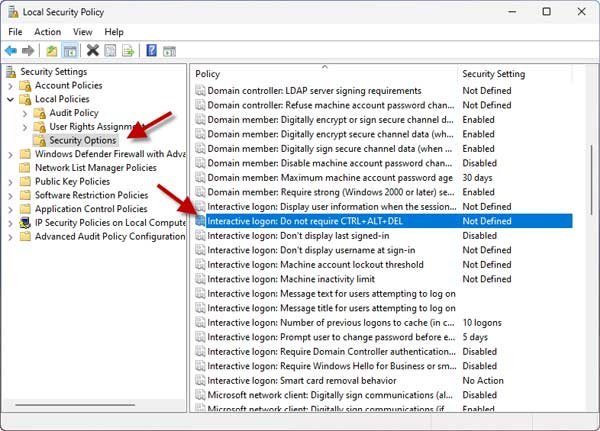
4. Now, go to Security Settings > Local Policies > Security Options.
5. In the right pane, scroll down and locate Interactive Logon: Do not required CTRL+ALT+DEL policy setting named. By default, the setting is Not Defined.
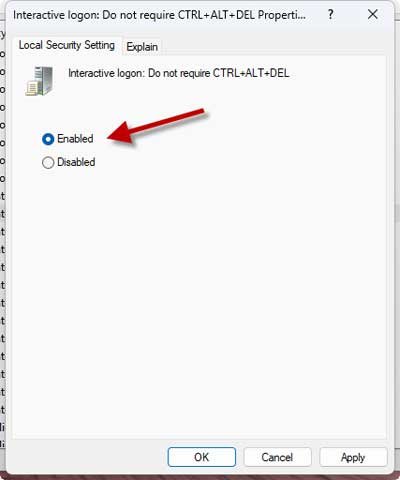
6. Double click on the policy setting to modify its status. In the policy configuration window, select Disabled and click Apply, OK.
7. Once done, update the Group Policy engine using gpupdate /force command to make changes effective.
Now when you login into your Windows 11, you need to make secure sign-in by first pressing CTRL+ALT+DEL and then enter your credentials.

