

Are you annoyed by the message “You’re Almost Done Setting Up Your PC” that appears when you start or log into your Windows 11 computer? This is part of the Windows “Welcome Experience” screen, and you can easily turn it off in the settings.
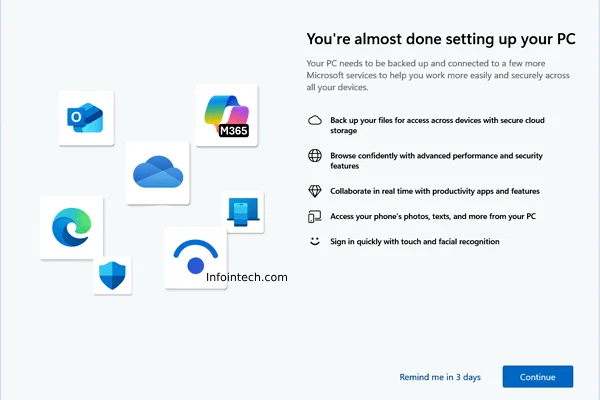
This message appears from time to time when you start your Windows 11 PC, often after you install a Windows update. You have two options: you can either dismiss the screen by clicking the “Remind me in 3 days” option at the bottom, or you can click the “Continue” button to complete the setup process.
This is the ‘Post-Upgrade Setup‘ or ‘Welcome Experience‘ screen of Windows 11, which can be permanently disabled using the Settings app. This screen is designed to showcase new and suggested features in the operating system, so disabling it may not affect your overall Windows experience.
ALSO READ: 3 Methods to Uninstall Latest Feature Updates in Windows 11
Here is how to disable the “You’re Almost Done Setting Up Your PC” screen on Windows 11.
Turn Off the ‘You’re Almost Done Setting Up Your PC’ Screen Appearing at Startup on Windows 11
1. First, open the Settings app by selecting it from the Start menu or by pressing the WIN + I shortcut key.
- In the left pane, select the System option.
- In the right pane, click on Notifications.
- Scroll down to the bottom and click on Additional Settings.
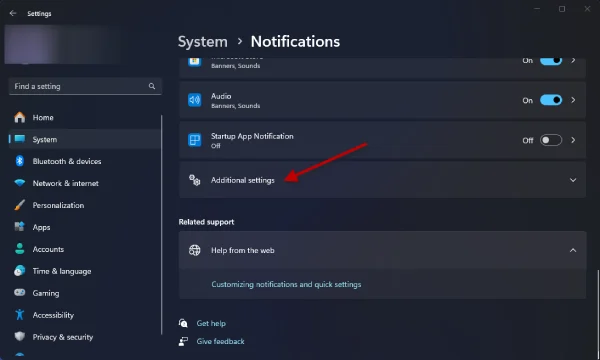
2. Now, uncheck all the available options:
- Show the Windows welcome experience after updates and when signed in to show what’s new and suggested
- Suggest ways to get the most out of Windows and finish setting up this device
- Get tips and suggestions when using Windows.
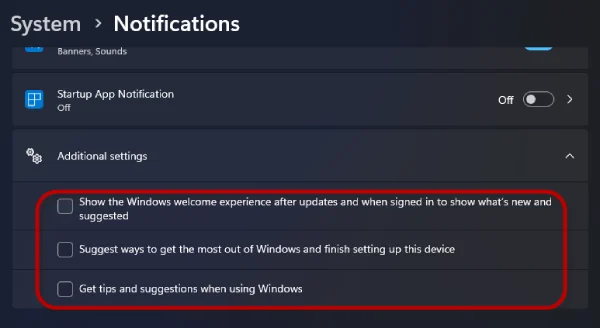
This will disable the welcome experience screen and related notifications. Windows 11 will no longer display any unwanted setup wizard screens at startup, allowing you to access your Desktop without any interruptions.

