

DuckDuckGo, the privacy-focused search engine and web browser, features Duck.ai, which allows users to interact with popular chatbots like ChatGPT, Claude, Llama, and Mistral anonymously, without the need for signing up.
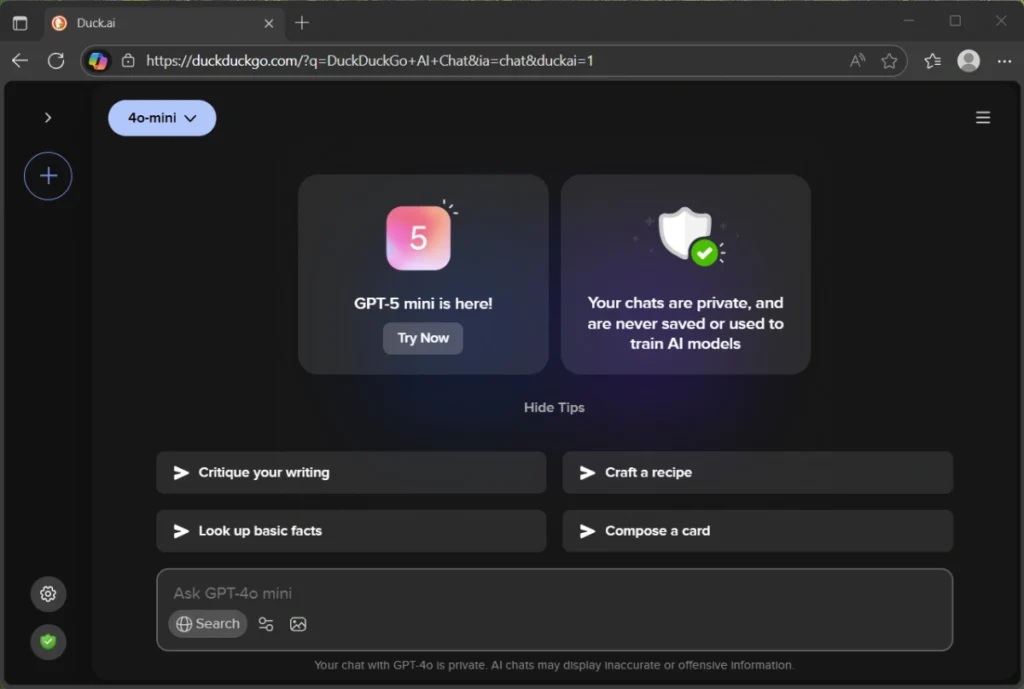
You can access Duck.ai from any browser and use it for free, but with limited features. Your conversations with the chatbot will be anonymous, no sign-up is required, and the content of your chats will not be used to train or improve any models.
As of this writing, Duck.ai offers OpenAI’s GPT-4o mini, and the latest GPT-5 mini, Anthropic Claude 3.5 Haiku, Meta Llama 4 Scout, and Mistral AI’s Mistral Small 3 for free. You can quickly select the desired model from main window.
The good thing is that you can install Duck.ai as a Progressive Web App (PWA) on your Windows 11/10 using the Edge or Chrome browser, allowing you to quickly launch it from your desktop or taskbar. Here’s how to do it:
How to Install Duck.ai PWA App on Desktop
1. Launch the Microsoft Edge browser and go to the Duck.ai webpage.
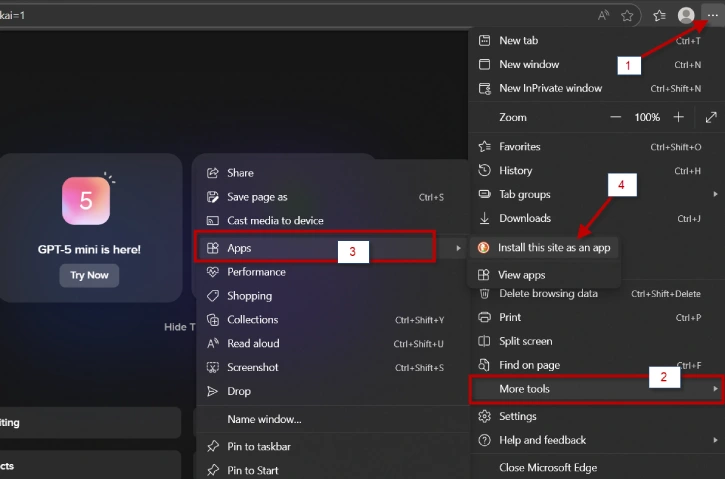
2. Next, click the three-dot menu and navigate to More tools > Apps > Install this site as an app.
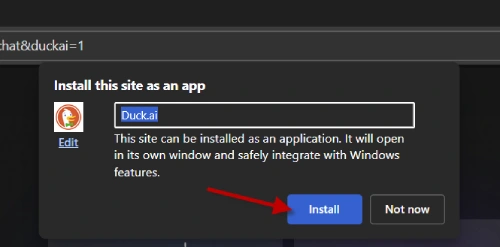
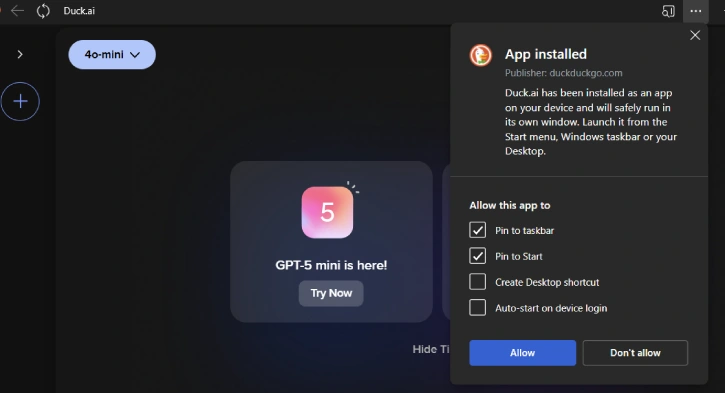
3. Click the Install button, and then click the Allow button to install Duck.ai as an app.
4. You can access Duck.ai app from the Start menu, which you can place on your desktop or taskbar for quick access.
A key feature of a PWA (Progressive Web App) is that it behaves like a regular app. You can resize it, move it around, minimize or maximize it, and use it just like a native application.
How Does DuckDuckGo’s AI Chat Protect Your Data?
DuckDuckGo’s Chat AI doesn’t require users to sign up or provide any personal information. This means your chats are not tied to your identity, ensuring complete anonymity.
The Chat AI doesn’t collect any metadata that could identify your device, such as your IP address. This prevents your chats from being associated with your device or location.
DuckDuckGo has committed to not sharing users’ chats with any third parties, including the model providers. It uses its own IP address to connect with the bot. Your conversations will remain private and won’t be used for other purposes.
DuckDuckGo only stores chats briefly to ensure their systems are working properly. However, since the chats are already anonymous, there’s no need to further anonymize them.
By implementing these privacy-focused measures, DuckDuckGo’s Chat AI aims to provide a secure and confidential conversational experience that truly respects user data and privacy

