
Using signature on a Word document serves several important purposes: it verifies the ownership of the file (authentication), ensures that the document has not been altered (integrity), and restricts unauthorized reproduction. With a digital signature, you can be confident that your important files, such as contracts, reports, and plans, come from the intended source and remain unmodified.
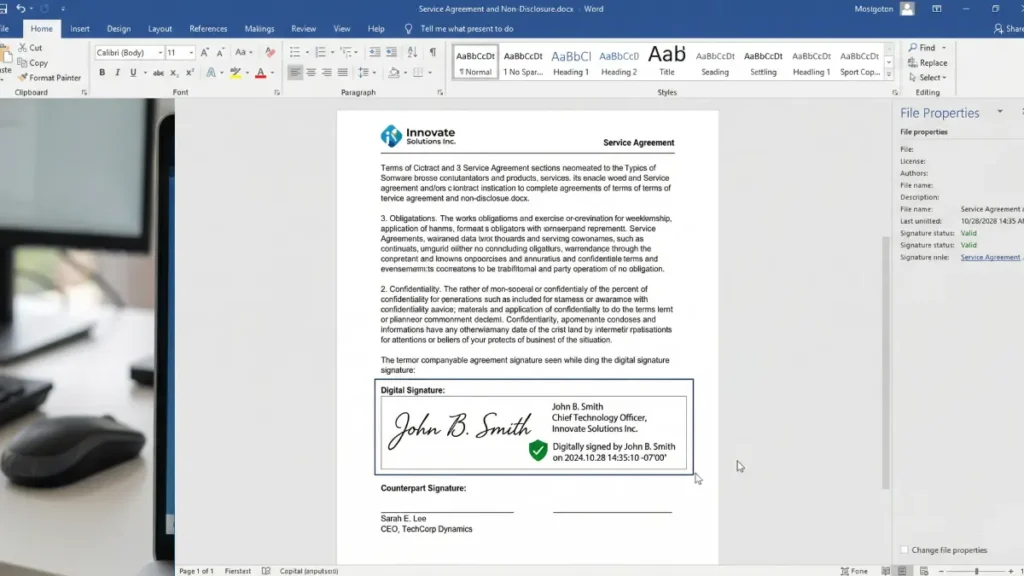
This comprehensive guide walks you through the entire process, even if you’ve never created a digital signature before in Microsoft Word document.
Table of Contents
How to Signing Your Word Document?
1. First, open a document in Microsoft Word that you want to sign. Make sure the document is ready for editing. If it’s a shared document, turn it into editable and check with collaborators for any necessary permissions before proceeding.
2. Now, navigate to the “Insert” tab at the top menu bar in Word. Click on “Signature Line” from the dropdown menu to proceed.
A dialog box will appear where you’ll enter your details. Fill in the required fields, including: your name, your title or position, email and optional instructions for the signer (if applicable).

3. Next, click “OK” to insert the signature line into your document. Double-check that all information is correct, as these details will appear alongside your signature.
4. Now, double-click the signature line to activate the signing prompt. Enter your name (or choose your signature image file) and click “Sign” button to add your sign on the document. You can also change your signature certificate from the same window.
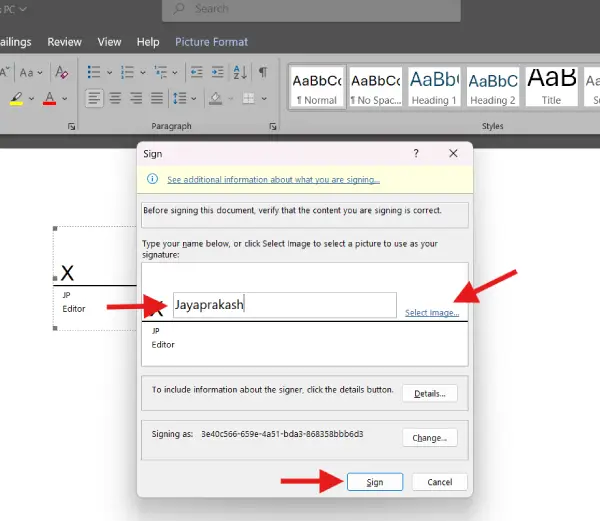
5. Once you’ve added your digital signature, save your document. Your Word document is now digitally signed and authenticated, providing recipients with assurance of its legitimacy.
FAQ:
Can I sign a Word document without a digital certificate?
Yes, you can insert a handwritten signature image into your document, but this is not a digital signature and doesn’t provide cryptographic security or proof of authenticity. It’s purely visual.
What if I don’t have a digital certificate?
You can obtain a digital certificate from a trusted certificate authority (CA) to create an official digital signature. Alternatively, you can use Microsoft’s self-signed certificate option to create a signature for personal or internal use, though it won’t be verified by an external authority. You can also use a handwritten signature image as a workaround.
How do I remove a signature from a Word document?
Right-click the signature line and select “Remove Signature” from the context menu to delete it from the document.
Why Digital Signatures Matter
Digital signatures are essential for verifying authenticity and preventing fraud. They use cryptographic technology to confirm that a document hasn’t been altered and comes from the claimed sender. Unlike handwritten signatures, digital signatures are mathematically binding and nearly impossible to forge. This makes them crucial for protecting sensitive transactions, legal documents, and financial agreements in our increasingly digital world.
Digital signatures have legal standing in most jurisdictions worldwide, eliminating the need for physical paperwork. They accelerate business processes by enabling instant document signing from anywhere, reducing delays and administrative costs. Organizations can now execute contracts, approvals, and agreements remotely and securely. This efficiency boost, combined with compliance with regulations like eIDAS in Europe and ESIGN in the United States, makes digital signatures indispensable for modern commerce.


