

ChromeOS Flex is an operating system that lets you run ChromeOS on any compatible device. You can install ChromeOS Flex on your old Windows PCs and Macs to give them new life. ChromeOS Flex boots in 6 seconds and updates automatically giving you a quicker and safer computing experience.
To install ChromeOS Flex, you must create an bootable USB drive that needs about 12GB of space. You can make a ChromeOS bootable disk with the Chromebook Recovery Utility extension for the Chrome browser.
Installing ChromeOS Flex is a process. Connect the USB drive to your device turn on the PC and press the boot key. Choose the ChromeOS Flex USB drive. Follow the instructions to run or install it on your device.
A convenient way to use ChromeOS Flex is to install it on a USB drive. This lets you take ChromeOS Flex with you wherever you go without having to install it on your computer’s storage. When you boot ChromeOS Flex from the USB drive you can enjoy most of ChromeOS features and functions.
ChromeOS Flex has an interface similar to the ChromeOS experience on Chromebooks. You can sign in with your Google account to access bookmarks, settings and other personalized features.
How to Format ChromeOS Flex Bootable USB Drive?
If you no longer need ChromeOS Flex on the USB drive or want to use the drive for purposes you can format it. Formatting deletes all data on the USB drive so back up any files before proceeding. Unfortunately right‑clicking on the drive, in File Explorer (Windows) or Finder (Mac) and selecting the “Format” option does not work with a ChromeOS bootable USB drive.
Follow the instruction below to format a ChromeOS Flex bootable drive (Source, image credit).
Step 1: Install the Chrome Recovery Utility extension (download) on your Chrome browser and launch it.
Step 2: Connect your ChromeOS Flex bootable USB drive to your computer.
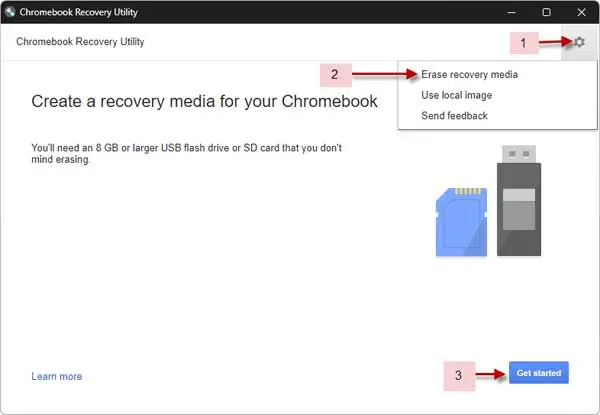
Step 3: Click the Settings (gear-like icon), select the Erase Recovery Media option and click the Continue button.
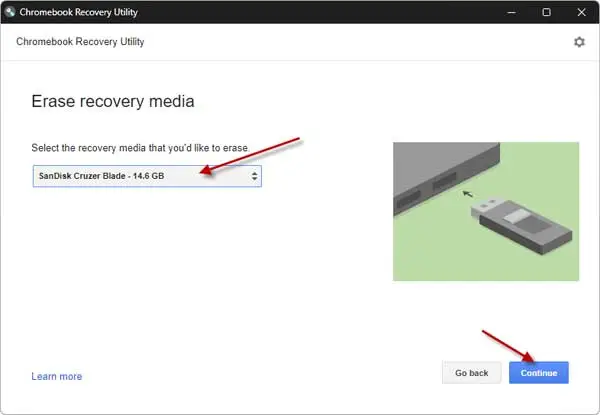
Step 4: Next, click the drop-down menu, select ChromeOS Flex bootable USB, and click the Continue button.
Step 5: Next, click the Erase Now button to delete ChromeOS Flex media from the drive.
Step 6: Now, format the USB drive from your Windows or Mac.
Conclusion
In conclusion, installing and using ChromeOS Flex on a USB drive is a convenient way to experience ChromeOS on any compatible device. With easy installation steps and a user-friendly interface, you can enjoy the benefits of ChromeOS Flex wherever you go.

