

When you open a non-Word document – such as a text file, HTML page, PDF, or older WordPerfect document – Microsoft Word usually opens it without asking how you want it converted. If you frequently work with older or less common file formats, this can cause problems, including incorrect text encoding and changes to the document’s layout.
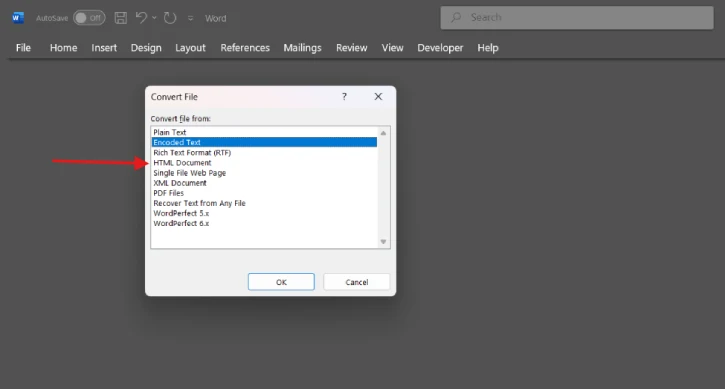
Microsoft Word includes a file conversion option that prompts you to choose a file format whenever you open a non-Word document. You can select from formats such as Text, HTML, XML, PDF, WordPerfect, Rich Text Format (RTF), and other available options before opening the file in Word.
If you regularly work with older or less common document types, enabling this option can be helpful. Choosing the appropriate conversion format can help preserve the document’s text, formatting, and overall layout.
How to Enable File Conversion Prompt in Microsoft Word
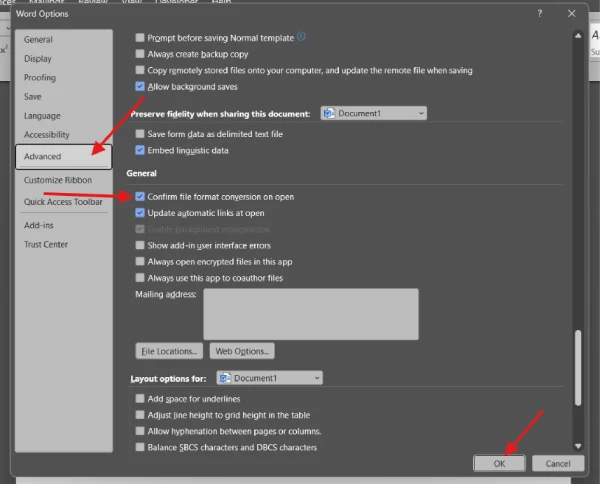
1. Open Microsoft Word and click File in the top-left corner.
2. Select Options at the bottom of the menu.
3. Click Advanced.
4. Scroll down to the General section.
5. Select Confirm file format conversion on open.
6. Click OK to save your changes.
The next time you open a non-Word file, Word will display a dialog box asking which file conversion format you want to use. Select the appropriate option, then click OK to open the document.
If you only work with modern Word documents, you can leave this option unchecked. Otherwise, enabling it can be useful when opening older files or documents created in other text formats.
Final Thought
With this option enabled, Word gives you greater control over how unfamiliar files are opened, helping you avoid unnecessary formatting and encoding problems in your documents.

