

The leaked renders of the first Windows 11 laptop with Qualcomm’s Snapdragon X Elite A.I. CPU feature a new Bloom wallpaper for personalization. The Copilot-themed wallpaper indicates the Snapdragon X Elite CPU-powered laptop will have several AI capabilities. Interested users can download the wallpaper from the link below to use on their PCs.
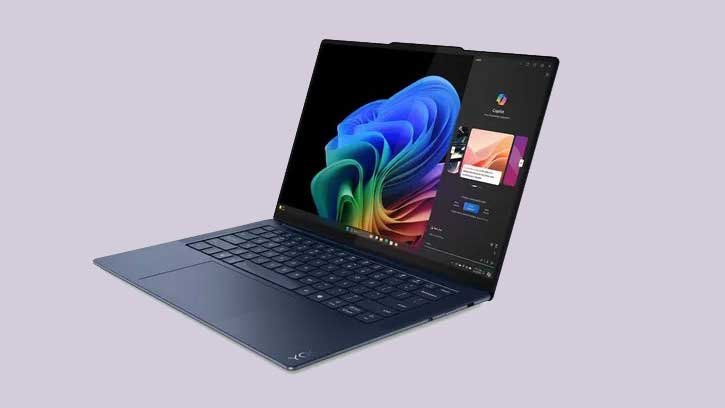
The new Bloom wallpaper for Windows 11 has dynamic colors that match the Copilot icon. The green, blue, purple, and other vibrant hues resemble the Copilot theme color. And the wallpaper with a dark background will bring a dynamic look to your desktop.
FYI, Qualcomm’s Snapdragon X Elite ARM chip for Windows 11 PCs features Oryon cores, Neural cores, and Hexagon NPU, offering high performance and efficient AI capabilities. The world’s largest PC maker, Lenovo, plans to launch their new flagship “Windows on ARM” line-up using the Snapdragon X Elite chip.

Download the wallpaper (Gdrive)
Upcoming AI Features of Windows 11 and Microsoft Edge Browser
Microsoft is prepping to add many new AI features to Windows 11 and the Edge browser. Circle to Copilot, multiple Copilot actions, summarize with Copilot, etc., are a few upcoming Copilot features.
Circle to Copilot
The upcoming Edge browser will get the “Circle to Copilot” like Google’s “Circle to Search”, a feature allowing users to use AI to find details about an image or text shown on any webpage by circling the required area.
Currently available with Microsoft Edge canary for desktop and iOS, once you circle and upload, Copilot AI will analyze the image and its content, including the text.
Copilot Actions
Also, the latest Edge browser (canary) features new Copilot Actions, which allow you to quickly change a setting or navigate to a related section inside the Settings page. Like Windows 11 Copilot actions, Microsoft added multiple commands to the Edge browser that you can type in Copilot. The AI assistant will respond to these commands by performing the task.
Summarize with Copilot
The Summarize with Copilot is the new AI feature available with Windows 11 24H2 update. When you visit a web page or video site like YouTube, a Summarize icon will appear in the address bar of the Edge browser.
You can click on the summarize icon to outline the content without reading long chunks of text or seeing the lengthy video. It would be a usable addition to the Copilot because it can help you find necessary details from the content quickly.

