

Windows 11 will show you a welcome experience screen occasionally when you turn on or sign-in your PC. This screen showcases what is new and suggests content to add to your Windows 11 PC. It can be a welcome feature for newbies, but most often it is an annoyance and time wasting feature for serious computer users. So they may want to disable it.
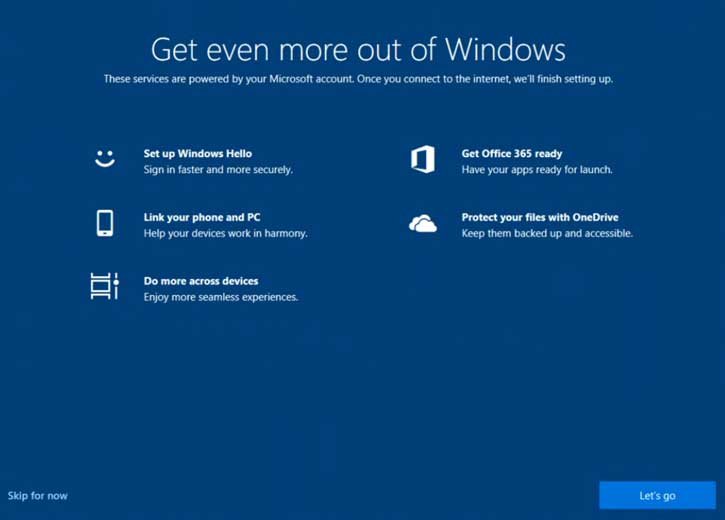
In this guide let us learn how to disable the Welcome Experience screen on your Windows 11 computer. The Windows Welcome Experience appears when you create a new account or at random intervals when you turn on or sign-in your PC. also appears after updates and when you sign in.
The Windows Welcome Experience screen suggest you log in to your account, try Office 365, link your phone to PC, setup Windows Hallo, and more. For many users this is time consuming feature and want to disable it.
You can disable Windows Welcome Experience in Windows 11 via settings and registry settings. Here is how to do both on your PC.
How to Disable Windows Welcome Experience in Windows 11 via Settings App?
1. First, open the Settings app (Press Win + I keys).
2. Next, select System and click Notifications.
3. Under Additional notification settings, turn off the option “Show the Windows experience after updates and when I sign in to show what’s new and suggested.”
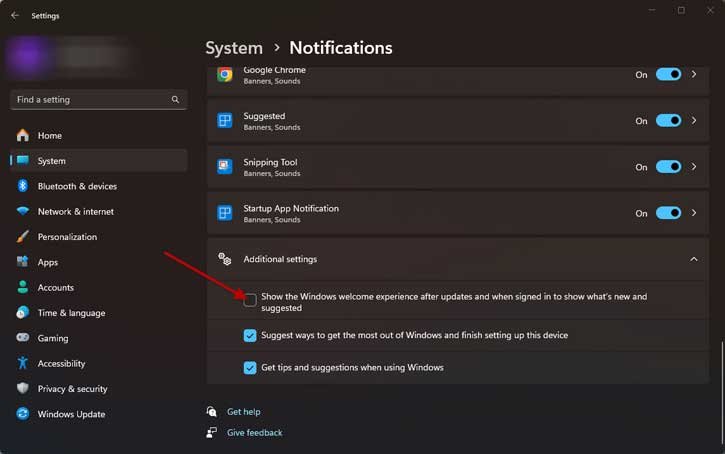
You have disabled Windows 11 Welcome Experience screen. To enable it turn on the option “Show the Windows experience after updates and when I sign in to show what’s new and suggested.”
How to Disable Windows 11 Welcome Experience Screen via Registry Editor?
Disclaimer: Please follow the below guide at your own risk. We cannot be held responsible for any issues that may arise. This guide is intended for use by technically talented users only.
1. In Windows search, type Registry and click the Registry Editor to open it.
2. Now, navigate to:HKEY_CURRENT_USER\Software\Microsoft\Windows\CurrentVersion\ContentDeliveryManager
3. In the right pane, double click SubscribedContent-310093Enabled DWORD and set its value data 0.
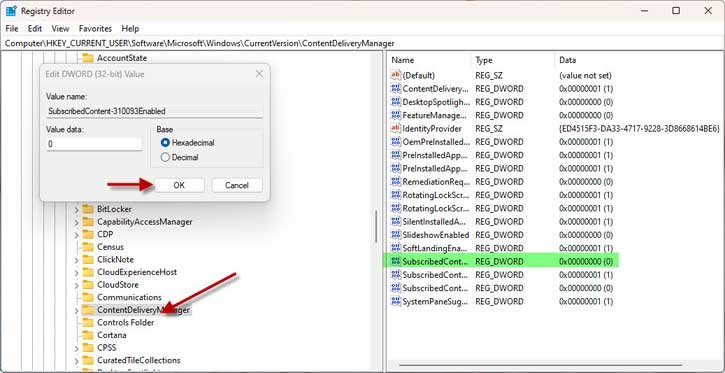
4. Now, close Registry Editor, restart your computer.
You have now disabled the Windows Welcome Experience on your PC. You will not get the screen after updates and when you sign in to the PC. To re-enable the feature, set the SubscribedContent-310093Enabled DWORD value to 1.

