

From popular options like ChatGPT to the recent hype surrounding DeepSeek, several AI chatbots are now available, equipped with advanced language models, knowledge bases, and reasoning capabilities to provide users with more intelligent and personalized responses.
If you regularly use AI tools, you know how challenging it can be to manage multiple chatbots just to get the best answers. Copying and pasting the same query across different chatbots can be annoying, but there are tools that allow you to export your chat from one chatbot to another with just a click.
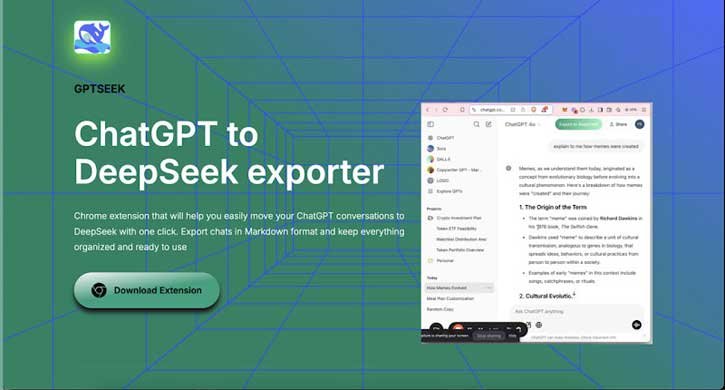
If you want to compare responses from ChatGPT and DeepSeek, the GPTSeek extension for Chromium-based browsers, such as Google Chrome and Microsoft Edge, allows you to export your ChatGPT chats to DeepSeek with a single click. This can save you time whenever you want to compare results from both AI assistants.
How to Export ChatGPT Conversations to DeepSeek Effortlessly
1. First, install the GPTSeek extension on your Chrome browser.
2. Open ChatGPT and enter your query. You can also access your older chats from the history.
3. Click the “Export to DeepSeek” button shown in the top right corner of the ChatGPT window.
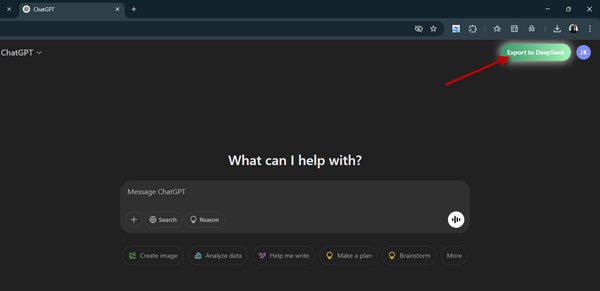
4. The selected chat will be exported to DeepSeek instantly.
5. It will automatically open DeepSeek in a new tab for the process (you must already be logged in to DeepSeek to use this feature).
The open-source project DeepSeek has recently introduced the DeepSeek R1 reasoning model, which serves as a free alternative to OpenAI’s $200 ChatGPT o1 model. Notably, the DeepSeek R1 is reported to be faster in code generation and task breakdown. However, with the release of ChatGPT’s latest, o3-mini reasoning AI model, the competitive landscape is becoming increasingly favorable for ChatGPT.

