

Extensions for browsers will enhance users experience by adding new features and functionalities, but this feature isn’t widely available for mobile browsers. FMicrosoft Edge for Android now supports extensions, allowing users to enhance their browsing capabilities on their smartphones.

Users of the Microsoft Edge browser on Android can now customize their web experience with ad blockers, password managers, dark mode enhancers, and productivity tools via extensions.
Why Extensions are Important for Android Users
Mobile browsers often have not extension support as desktop browsers. This limits how users can personalize and improve their browsing. Microsoft Edge becomes one of the few mobile browsers, like Firefox, that supports extensions. Now, Android users have more control over their browsing experience.
To get started, just update your Android phone’s Edge browser to the latest version (134.0.3124.57), and you’ll be able to install extensions right from the browser.
How to Install Extensions on Microsoft Edge for Android?
1. First, download the latest version of the Edge browser from the Google Play Store.
2. Then, open Edge and tap the menu icon (three horizontal lines) in the lower right corner.
3. Select “Extensions” to access the Add-on page.
4. You will see a list of all supported extensions.
5. Browse through the options and tap the “Get” button next to the one you want.
6. Next, tap “Add” to confirm your choice.
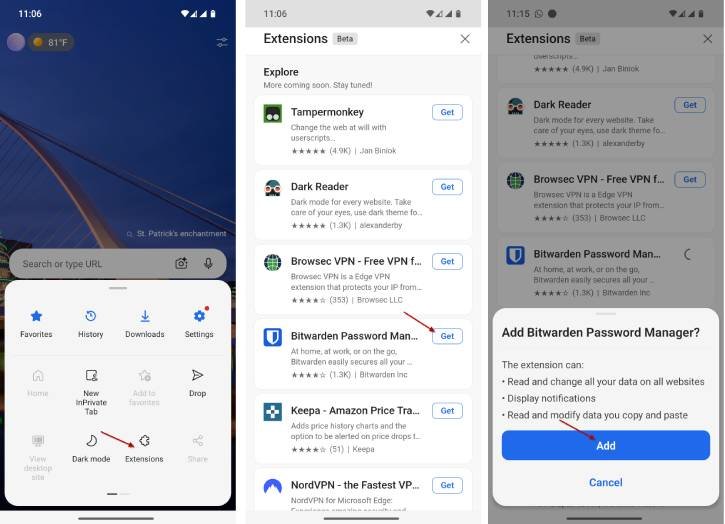
After installation, you can manage extensions, toggle them on and off, and adjust their settings as needed.
ALSO READ: How to Change the Default Search Engine in Microsoft Edge
Note that, currently, a few selection of extensions can be found in the Edge mobile extension store, including Keepa, NordVPN, Bitwarden, Dark Reader, and Tampermonkey. The extensions for Edge mobile are still in beta, and the catalog will expand in the future. Also, compared to desktop version, older Android devices may struggle with more resource-intensive extensions.
Although Chrome remains the preferred browser for Android users, Edge offers a competitive advantage with its support for extensions. This creates a compelling reason for users seeking enhanced customization options to consider making the switch.

