

In this article, we will learn how to use the IMPORTRANGE formula in Google Sheets to pull data from one spreadsheet into another automatically. When the data in the original sheet changes, the data in your new sheet updates automatically.
There a few benefits of using this function. It saves time, combine data from different spreadsheets in one, keep your data organized, and you can avoid errors that usally come up when copy-paste data.
How to Use IMPORTRANGE Function in Google Sheets
The IMPORTRANGE formula looks like this: =IMPORTRANGE(spreadsheet_url, range_string)
Where spreadsheet_url is the web address (URL) of the Google Sheet you want to pull data from, and range_string is the cells you want to import, like “Sheet1!A1:C10.”
- To use it, open both the Google Sheets datasets (sheet to copy data from and sheet to pull the data into).
- Click the destination cell.
- Enter
=IMPORTRANGEimmediately followed by("the URL of your source sheet","sheet name!data range"). - Press Enter.
- If this is your first time connecting the two spreadsheets, click Allow access.
Step-by-Step Guide to Using IMPORTRANGE in Google Sheets
For this guide, I am going to use IMPORTRANGE to transfer data from cells A2 to C10 to the corresponding cells of another spreadsheet.
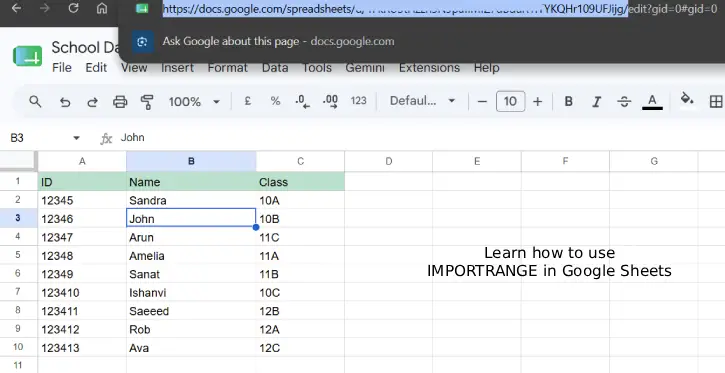
1. Open the Google Sheets spreadsheet that you want to copy data from.
2. Copy the URL, excluding everything after “spreadsheets/d/[ID]/” (remove “edit#gid=0“).
3. Open the destination spreadsheet and click the destination cell.
4. In the destination cell, enter =IMPORTRANGE("copied URL","sheet name!data range").
- In our example, it looks like this:
=IMPORTRANGE("https://docs.google.com/spreadsheets/d/1FkRU3tHzzh5N9dasthiMfZ7dBduR1fTYKQHr109UFJijg/","Sheet1!A2:C10").
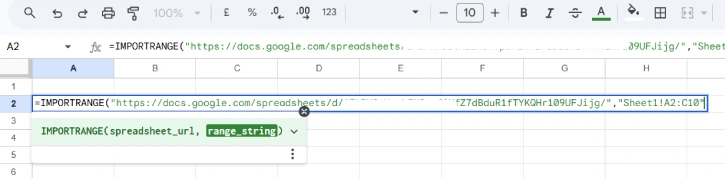
Note: If your spreadsheet contains several sheets, you need to specify which source sheet you want to pull data from.
5. Press Enter.
6. If you are trying this function for the first time, you will get an error message: #REF!. Click Allow Access to give your destination spreadsheet permission to access your source spreadsheet.
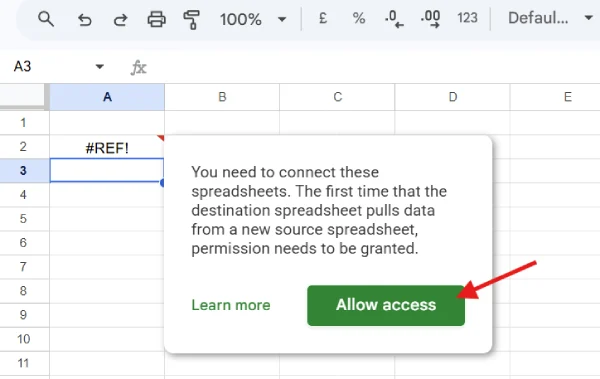
7. Google Sheets will import the specified data range into your destination spreadsheet. Any updates made to the source cell range will also automatically appear in the destination spreadsheet.
Video demonstration on how to use IMPORTRANGE:
FAQ
Q: Can I import data from a spreadsheet that someone else shared with me?
A: Yes, as long as you have access to view the spreadsheet, you can use IMPORTRANGE to pull data from it.
Q: What happens if the source spreadsheet is deleted?
A: The IMPORTRANGE formula will return a #REF! error, indicating that the source is no longer available.
Q: Can I import data from multiple sheets at once?
A: No, each IMPORTRANGE formula can only pull from one sheet at a time. However, you can use multiple IMPORTRANGE formulas in different cells to import from different sheets.
Q: Will IMPORTRANGE work if I change the column or row structure in the source sheet?
A: If you add or delete columns/rows within your specified range, the import will adjust. However, if you significantly restructure the data, you may need to update the range in your formula.
Q: Is there a limit to how much data I can import?
A: Google Sheets can handle large datasets, but very large imports may take longer to process.
FYI, the IMPORTRANGE formula is a powerful tool that simplifies data management in Google Sheets. By automating the data transfer process between spreadsheets, you can save time, reduce errors, and maintain better organization across your documents.

