

Quick Look is a feature in macOS that lets you quickly preview files without opening them fully. For example, if you want to see a photo, a document, or a video, you can select the file and press the spacebar. A small window will pop up showing you the content of the file. This feature allows you to check what’s inside without launching the full application. You can add this instant file preview feature to Windows 11 using a simple app called QuickLook.
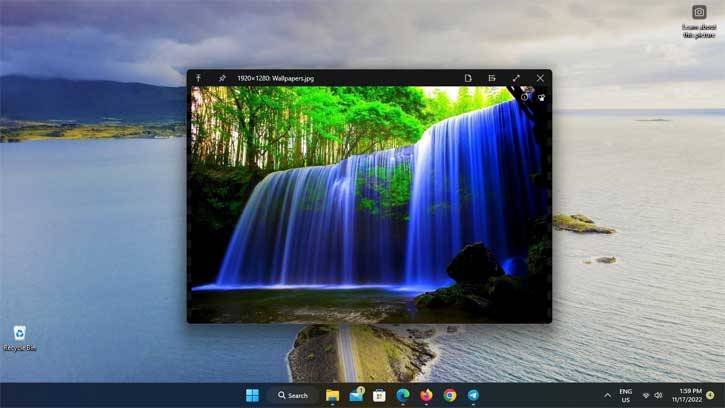
Yes, Windows File Explorer does have a preview feature, but it only supports a limited number of file formats. For example, it doesn’t allow you to preview vector graphics (SVG), zip files, markdown files, etc.
By adding Quick Look feature of macOS to your Windows 11 PC using the QuickLook app, you can quickly preview file contents just by pressing the spacebar (see screenshot above).
The QuickLook app supports a wide range of file formats, including the contents of ZIP, RAR, 7z, and other compressed files without needing to uncompress them to view the content. Plus, you can enhance its functionality by installing additional extensions. Here’s how to bring the macOS Quick Look feature to your Windows 11 PC using the QuickLook app.
How to Install and Use QuickLook App on a Windows PC
1. First, go to the Microsoft Store and download and install the QuickLook app on your PC.
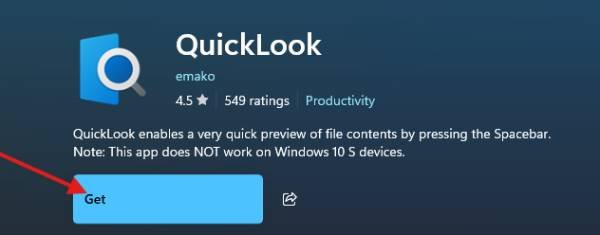
2. After installing, open QuickLook. It runs in the background, so you won’t see a window on your screen.
3. To preview a file, select it and press the Spacebar, just like on a Mac. A preview window will pop up so you can see the file.
4. Use the up and down arrow keys to move to the previous or next file.
5. Now, to zoom in or out on an image, use the pinch gesture on your touchpad or scroll the mouse wheel. For PDF files, hold the Ctrl key while scrolling the mouse wheel to zoom.
That’s all how you can add a macOS-like Quick Look feature to your Windows 11 PC. Now, if QuickLook can’t preview a certain file type, you can install QuickLook plugins from GitHub that supports that file. Here’s how to do it.
ALSO READ: Microsoft Tests Duplicate Tabs for Windows 11 File Explorer (How to Enable it)
How To install Extension for the QuickLook App?
1. Go to Github page, click on the plugin you want and download it. You can also find new plugins by right-clicking the QuickLook icon in the system tray and selecting “Find New Plugins.”
2. After downloading the plugin, go to your Downloads folder or wherever you saved it.
3. Select the downloaded plugin file and press the Spacebar. This will open the QuickLook window.
4. In the window, click on the text that says “Click Here to Install this Plugin” to start the installation.
5. Once the installation is complete, you’ll be asked to restart QuickLook. To do this, right-click the QuickLook icon in the system tray and select “Quit.”
However, note that the QuickLook app doesn’t include all the features available in macOS’s Quick Look. For instance, in macOS, you can rotate photos, trim audio and video clips, and use Markup directly in the preview window.
Note: This post was first published in April 2025 and updated in October 2026 with minor changes.

