

Microsoft Edit is a command-line interface (CLI) text editor available in Command Prompt and PowerShell. This lightweight editor in Windows 11 provides essential functionalities for users who need to create or modify text files directly from the command line, without switching to other applications like Notepad.
Microsoft’s new Edit app weighs just 205 KB in size and can be installed via Winget. It is an open-source command-line text editor like the classic MS-DOS Editor, but with a modern interface and input controls similar to VS Code. It is like the Linux text editors, such as, VIM and Nano.
The main use of Microsoft Edit is that it allows users to edit text files directly in Command Prompt without switching to GUI applications like Notepad.
The new Edit app for Windows 11, also compatible with Windows 10, features mouse navigation, multiple file editing, find and replace functionality, word wrap, and additional enhancements. These improvements make it a versatile tool for users seeking efficient text editing directly within the command-line interface.
ALSO READ: Notepad Opening Same File in Several Tabs: How to Fix it
In this guide, I will detail the steps to download, install, and begin using the Edit app on Windows 11.
How to Install Microsoft Edit app in Windows 11?
1. You can install Edit app via Winget (Windows Package Manager). To do so, open Command Prompt as administrator.
2. Next, execute the command: winget install --id Microsoft.Edit
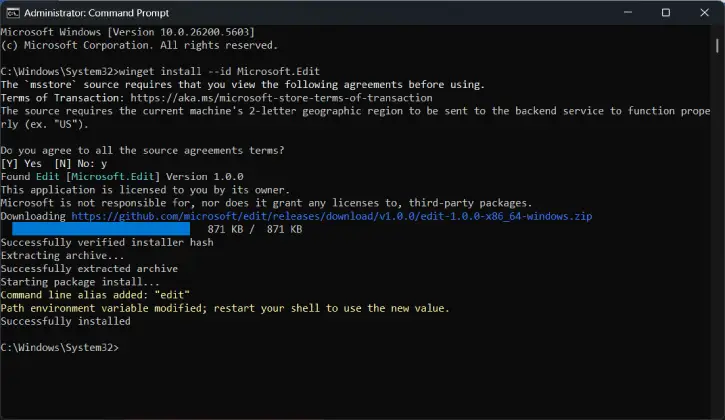
3. The above command will install the app from the GitHub repository.
4. Alternatively, you can download and install the text editor from the official GitHub page.
You have successfully installed Microsoft Edit on your Windows 11 PC. Now, let’s explore how to use the app.
How to Use Microsoft Edit on Windows 11
1. First, open Command Prompt (or Terminal) on Windows 11. You can also use Microsoft Edit in PowerShell.
2. To open a file directly in Edit, type this command and press Enter: Edit TEXT-FILENAME.txt.
3. To start the text editor without a file, just type Edit and press Enter.
4. Use the “Alt + F” keys to open the “File” menu, then select “Open File.” Choose your file and double-click it or press Enter to open it.
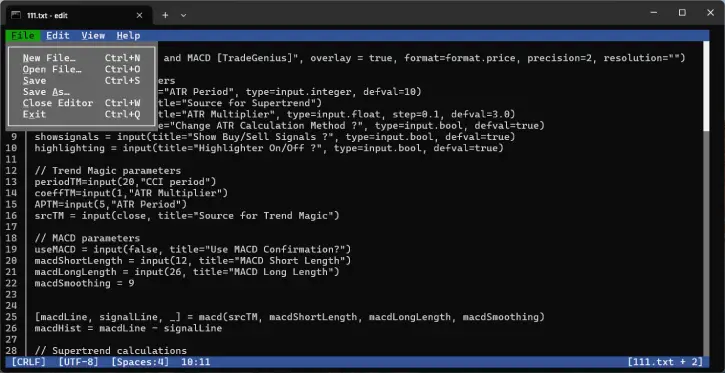
5. Once the file is open, you can edit it like in any other text editor. The “Edit” menu gives you options like undo, redo, cut, copy, and paste. You can also find and replace text from this menu.
6. To enable word wrap, press “Alt + Z” or find the option in the “View” menu.
7. To save your changes, use “Ctrl + S.” There’s no shortcut for “Save as,” but you can find that option in the “File” menu.
Final Thought
Microsoft Edit is a user-friendly text editor developed to fill the gap for command-line interface (CLI) editing. As an open-source project, its source code is available on GitHub for modifications. While manual installation is currently required, Microsoft plans to roll out Edit through the Windows Insider Program soon.
With its straightforward interface, Microsoft Edit allows for basic text editing tasks, making it a convenient tool for developers and system administrators. Users can easily navigate and edit files without the need for a graphical user interface, streamlining workflows and enhancing productivity. Overall, Microsoft Edit serves as a practical solution for quick text editing within the Windows command-line environment.

