

If you use Facebook, your account holds your personal information, including your most frequent contacts and the topics you discuss. It will also contain details about your family, close friends, and social activities.
To keep your account secure, it’s important to regularly check that everything is safe. One key step is to review the devices that are logged into your Facebook account.
If someone has stolen or compromised your password, they might be accessing your account without your knowledge. This could be an unknow person looking to exploit your information, but it could also be someone you know, like a partner, roommate, or family member.
You can check the devices logged into your Facebook account using either a computer or a mobile device. If you see a device that you don’t recognize, you can easily remove it. In that case you should change your password immediately to protect your account from any future unauthorized access.
How to View Facebook Login Details on Your Computer?
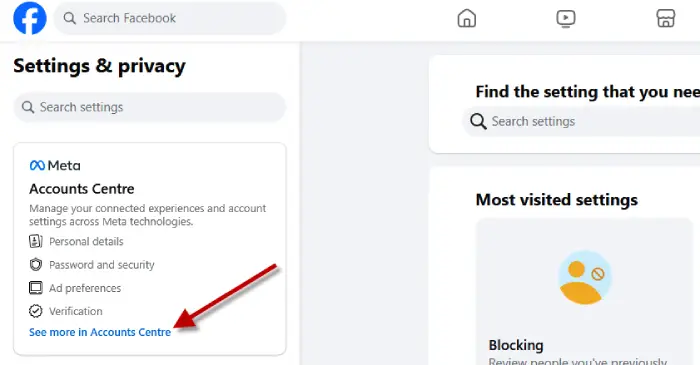
Meta buries this info in its account center. First you need to navigate to your account center to look logged in information. Here is how to
1. Go to the Facebook website in your browser and click on your profile picture in the top right corner.
2. Select “Settings & privacy,” then click on “Settings.”
3. In the Accounts Center section on the upper left, click on “See more in Accounts Center,” then choose “Password and security.”
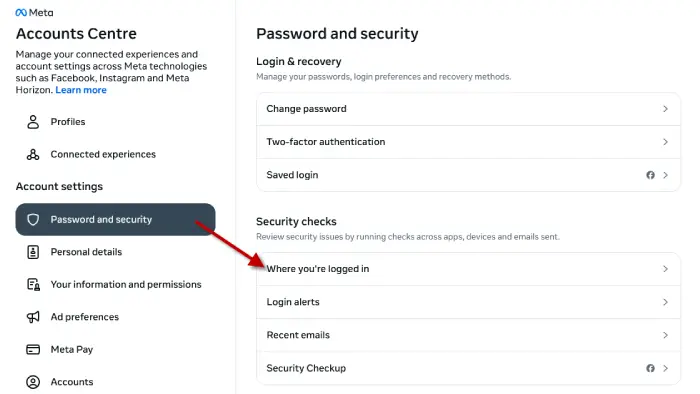
4. Click on “Where you’re logged in” under Security checks.
5. A pop-up will show your name, the device you’re using, and how many other devices are logged in.
6. Click to see the list. If you see a device you don’t recognize, click the red “Select devices to log out” link at the bottom, then check the boxes for the devices you want to log out.
How to View Login Details in the Facebook Mobile App?
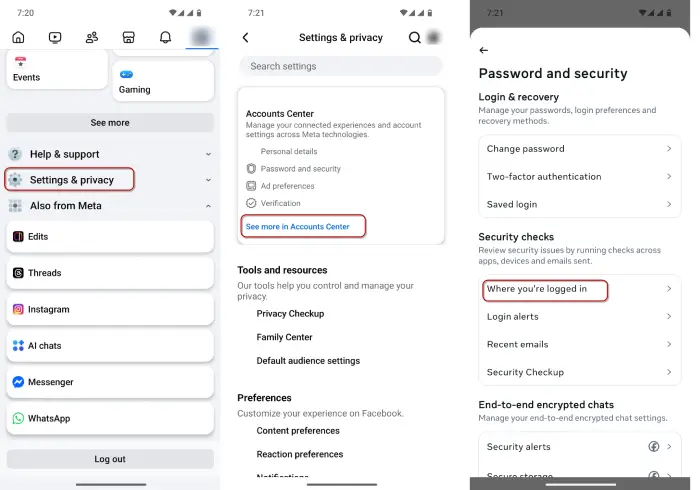
1. Open Facebook app, tap on your profile picture in the bottom right corner and go to “Settings & privacy.”
2. Select “Settings,” then find “Accounts Center” and click on “See more in Accounts Center.”
3. Tap on “Password and security,” then go to “Where you’re logged in” under Security checks.
4. A new screen will show your name, the device you’re using, and how many other devices are logged in.
6. Click on that box to see the full list of devices connected to your account.
7. To log out, scroll down and click “Select devices” to remove any you don’t recognize or use. Then check the boxes for the devices you want to log out.
Remove Your Linked Apps and Websites from Facebook
While unauthorized access to your Facebook account is a major concern, third-party services can also pose security risks. If you’ve linked Facebook to other apps and websites (by signing in with Facebook or connecting accounts), a hacker could access your Facebook data if those services are hacked.
To see which apps and websites have access to your Facebook, go to the application section of your Facebook account. You can remove any apps or websites you don’t use or trust. After that, it’s a good idea to do some extra cleaning on your Google account as well.

