HomeAIHow to Stop Gemini From Accessing Apps on Android

How to Stop Gemini From Accessing Apps on Android

Published on

Gemini, Meta AI, ChatGPT, and other AI applications work better when they can access your data. However, allowing these AI services to connect more closely to your personal information can lead to privacy concerns.

Also, accessing your personal data helps AI service providers like Google and Meta serve ads more effectively. The more they know about you, the better they can display ads that you are likely to click on.

Google Gemini guides

Google Gemini can now access information from connected apps, such as WhatsApp, Phone, Messages, and YouTube, and share information with these apps to provide the most relevant responses.

You can choose which apps Gemini connects to in the settings, but just turning off Gemini’s app activity won’t be enough. Here’s how to stop Gemini from accessing apps on your Android device.

How to Stop Gemini From Accessing Apps on Your Android Phone

Here are the steps to check the applications that the Gemini AI application has access to on your Android device.

1. Open the Google Gemini app on your Android device.

2. Tap your profile icon in the upper right corner of the screen.

3. Select “Apps” from the menu that appears.

4. On this page, you’ll see a list of apps connected to Gemini.
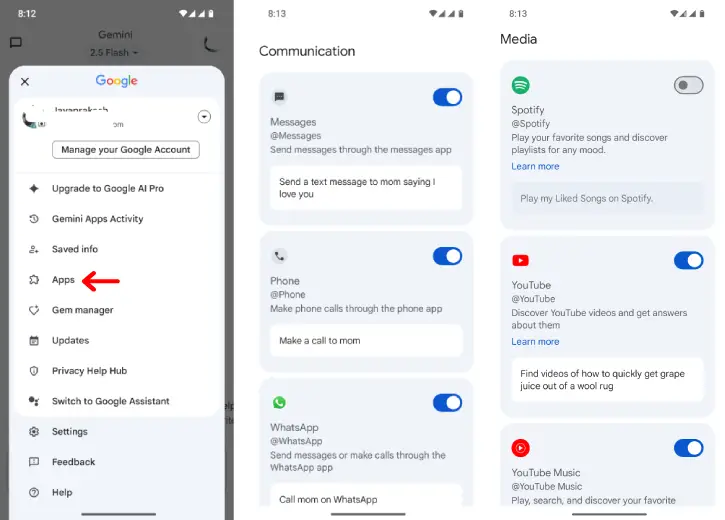
Stop Gemini From Accessing Apps on Your Android Phone

5. You can turn off any apps you don’t want from this list by taping the toggle.

6. Once you’re finished, go back and tap on “Gemini Apps Activity.”

7. This will take you to a Google webpage where you can turn off the activity.

Conclusion:

That’s all you need to know about stopping Gemini from accessing your apps on your Android phone. If you don’t plan to use the Gemini app or any other AI apps, you can also uninstall them. This will prevent the service from accessing any personal information or data on your device.

JP
JPhttps://infointech.com
JP (Jayaprakash), how-to expert and web geek with twenty+ years of experience, shares his knowledge through blogging filled with practical tips and guidance to help you enhance your computer and smartphone skills.

Latest articles

WhatsApp Advanced Chat Privacy: How to Enable & Disable This Feature

WhatsApp Advanced Chat Privacy is a powerful new privacy feature that puts you in...

How to Change the Default Search Engine in Microsoft Edge (Windows, Android, iOS)

Changing the default search engine in Microsoft Edge is a simple process that can...

How to Fix Android Auto Connection Issues [11 Methods]

Android Auto connectivity issues have become increasingly common. Recently, users of devices such as...

How to Add Control Panel to the Right-Click Menu in Windows 11

Control Panel is a centralized interface in Microsoft Windows that allows you to manage...

More like this

How to Change the Default Search Engine in Microsoft Edge (Windows, Android, iOS)

Changing the default search engine in Microsoft Edge is a simple process that can...

How to Fix Android Auto Connection Issues [11 Methods]

Android Auto connectivity issues have become increasingly common. Recently, users of devices such as...

How to Add Control Panel to the Right-Click Menu in Windows 11

Control Panel is a centralized interface in Microsoft Windows that allows you to manage...