

If you find the large icons and buttons on your Windows 11 Taskbar boring or want to accommodate more items, Windows 11 now allows you to make the icons and buttons smaller.
Unlike the earlier versions, Windows 11 comes with big Taskbar by default. The Start button, application icons, and pinned items are big and shown in the center of the Taskbar.
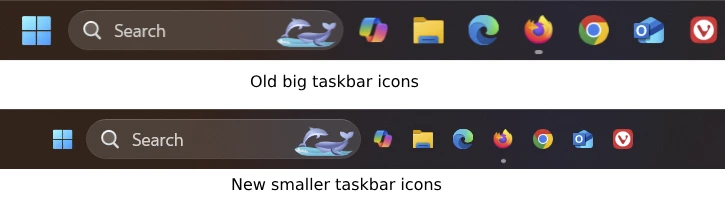
In this guide, let us learn how to show smaller taskbar icons and buttons on Windows 11 Taskbar. However, keep in mind that you can only reduce icons and buttons size, it’ll not decrease the height of the Taskbar.
The main advantage of making smaller Taskbar icons and buttons is that it helps Windows 11 to fit more items on the Taskbar when it’s crowded.
The new feature is available in the latest versions of Windows 11, so users must update their devices through Windows Update to take advantage of it. This guide lets you know how to change Taskbar icons size in Windows 11.
Table of Contents
How to Enable Smaller Buttons and Icons on Windows 11 Taskbar
1. First, right-click on an empty area of the Taskbar and select the “Taskbar Settings” option.
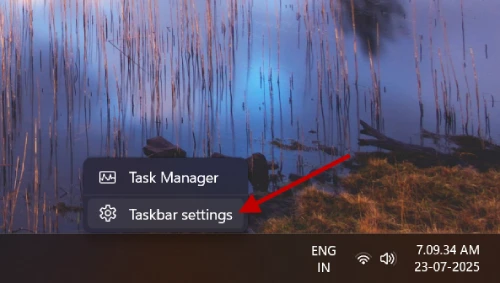
2. On the Taskbar settings page, scroll down and click the “Taskbar Behaviors” drop-down menu.
3. Scroll to the bottom and click the “Show smaller taskbar buttons” drop-down menu.
4. Select the “Always” option to make the buttons and icons smaller on the Taskbar.
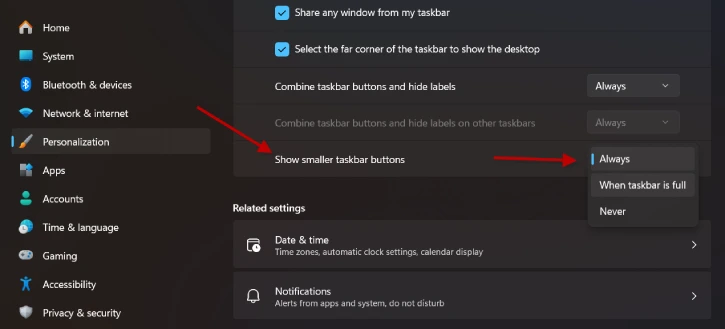
5. This will immediately enable the smaller Taskbar buttons feature on your Windows 11 device.
Note: If you want to revert to the default larger Taskbar buttons interface, change the option mentioned above to “Never” in the Taskbar Settings page.
Conclusion
Making taskbar icons smaller in Windows 11 saves space, allowing more apps to fit, and can enhance a minimalist look. However, it will not reduce overall Taskbar size. Conversely, larger icons improve visibility and ease of use.

