

Developer Mode in Windows 11 enables users to bypass standard system restrictions, allowing the installation of specific or unofficiaal applications, facilitating advanced customization and development options. This mode allows the installation of Windows Store applications (the .msixbundle extension apps) from any source.
Developer Mode in Windows 11 is mainly intended for developers and advanced users, as it allows testing of in-development apps, but anyone can test it by enabling it.
With this mode enabled, you can install certain apps (not the classic Win32 apps) that aren’t available in the Microsoft Store. For instance, the modified version of the Windows Subsystem for Android (WSA) to run Android apps from the Google Play Store.
Note that enabling or disabling Developer Mode does not limit the installation of classic desktop (Win32) apps from any source. In this guide, let us learn how to enable (and disable) Developer Mode on a Windows 11 PC.
ALSO READ: How to Disable Windows Welcome Experience Screen in Windows 11
How to Enable (Disable) Developer Mode in Windows 11?
1. Open Settings app on your Windows 11 and select System tab.
2. In System settings, turn on the Developer Mode toggle switch.
3. On the popup window, select Yes to enable the feature.
[Note: Microsoft has moved this setting to Privacy & Security section, so go to Settings > Privacy & security > turn on Developer Mode]
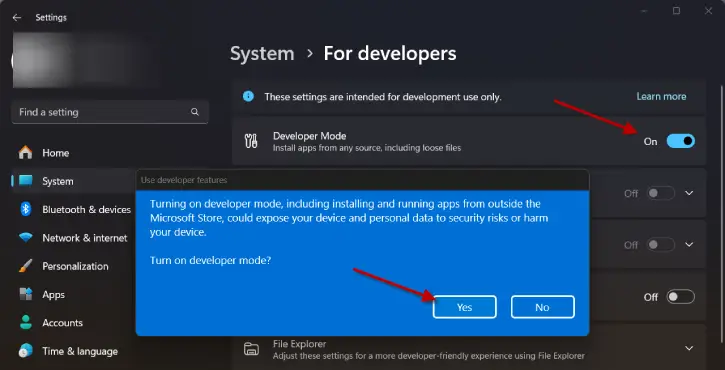
4. Once you complete the steps, Windows 11 will allow you to install Microsoft Store apps from any source.
5. To disable Developer Mode, go to Settings > System > toggle off Developer Mode.
Note: the Developer Mode setting in Windows 11 is only for Microsoft Store application or outside the store application, which use the .msixbundle extension.
Final Thought
Developer Mode enables the installation of Windows Store applications with the .msixbundle extension from any source, including loose files. This feature is mainly designed for developers and advanced users, enabling the testing of apps still in development. It provides flexibility but may pose risks for less experienced users.

