

Google Chrome includes a Password Manager that makes it simple to log into apps and services. This Password Manager keeps your information secure by using on-device encryption. A new feature called Automatic Password Change has been added to the Password Manager. In this guide, let us learn how to turn on this feature.
How Does Google Chrome Identify a Breached Password?
The Password Manager in the Chrome browser has a password leak detection feature that helps protect your data from security issues and privacy dangers. If any of your passwords appear in a data breach Google will send you a notice.
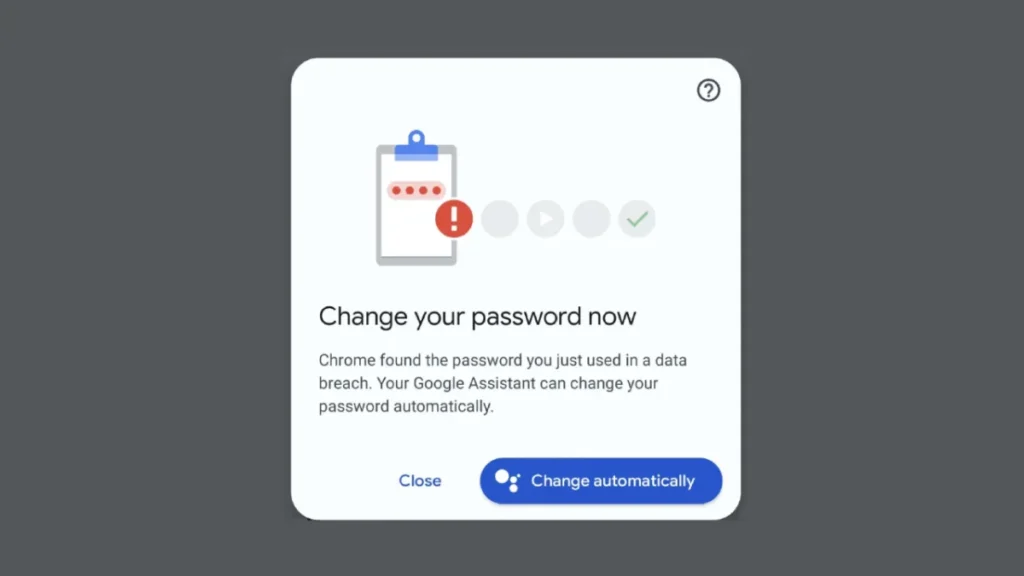
Now, the Automatic Password Change feature lets you automatically change any breached password. When it finds a password that has been compromised, it suggests changing it right away.
After you change the password, the new one will be saved in Google Password Manager. This process will continue until you manually change the settings.
Keep in mind that when Chrome detects a breached password, you can see options like “Change it for me” or “Change automatically.” It only uses a database from the U.S. to check for breached passwords.
How to Enable the Automatic Password Change Feature in Chrome
1. Open the Google Chrome browser and type chrome://flags in the address bar.
2. Search for Improved Password Change Service (or directly go to this page: chrome://flags/#improved-password-change-service).
3. Next to the Improved Password Change Service option, click the drop-down menu and select Enabled.
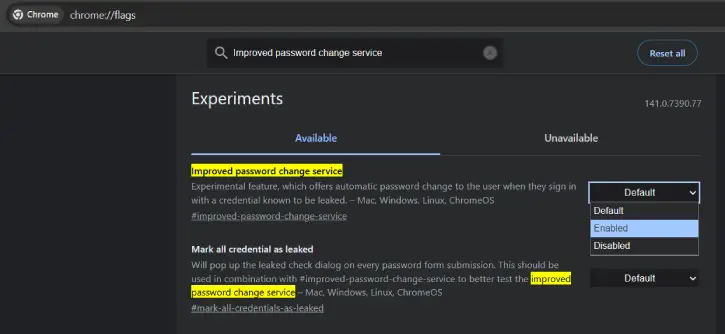
Important: This is an experimental feature as of this writing. This feature may or may not available in the future updates of the browser.
4. Restart your browser.
Note: To turn off the Automatic Password Change feature, follow the same steps and select Disabled from the drop-down menu.
The Automatic Password Change feature is experimental. It automatically suggests changing passwords for users when they sign in with credentials that are known to be compromised in a breach. Use it with caution.
Conclusion
Chrome’s automatic password changes feature helps you secure your credentials. If a stored password is breached, it alerts users and facilitates immediate changes, automatically saving the new credentials, enhancing security and privacy without requiring manual adjustments.

