

Firefox has introduced a new feature called the “Trust Panel,” which appears as a unified “Shield” icon in the address bar. This new icon replaces the previous Privacy shield and Secure lock icons, merging both functions into one. Users will see this single Shield icon in the URL bar of the Firefox browser.
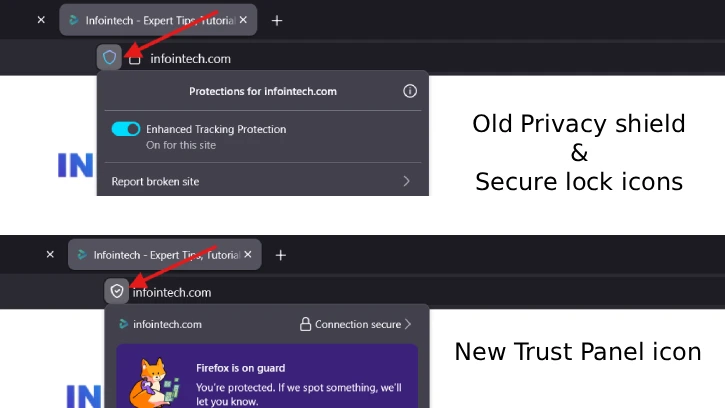
As of this writing, the “Trust Panel” is a testing feature in Firefox and is not enabled by default. To activate it, users must adjust the hidden browser preference settings. This guide will explain how to enable this new feature.
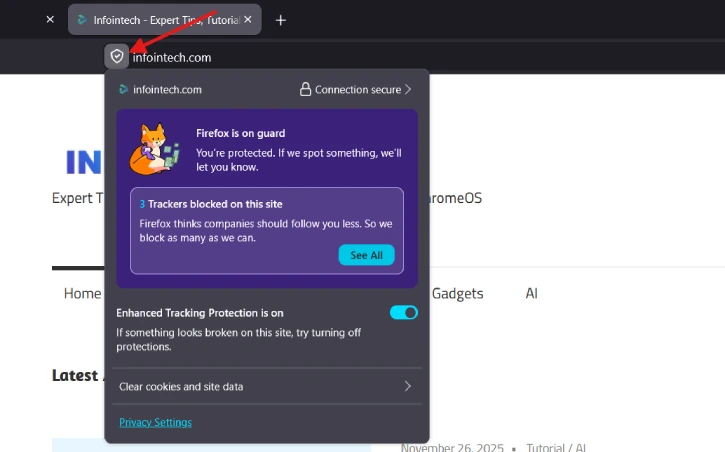
As said, the new Trust Panel merges the privacy shield and secure lock icons into a single icon. When users click this icon in the address bar, Firefox displays a fly-out menu with detailed tracking protection information, as illustrated in the screenshot below.
Using the Trust Panel button in the address bar of Firefox browser you can view trackers blocked, secure connection details (verified by Google), option to clear cookies and site data, option to turn On/Off enhanced tracking protection etc.
How to Activate the New “Trust Panel” Icon in Firefox’s Address Bar
Currently, Trust Panel feature is available in Firefox 145.0 and later versions and can be activated by modifying a hidden browser preference setting.
1. Open Firefox and type about:config in the address bar, then press Enter.
Click on the “Accept the Risk and Continue” button to access Firefox’s Preferences page.
2. In the preference search box, type trustpanel and find the preference “browser.urlbar.trustPanel.featureGate”
3. To enable the Trust Panel button in the Firefox address bar, double-click on the preference to change its value to True.

4. Alternatively, you can click the Toggle icon next to the preference name.
5. To disable or remove the Trust Panel button from the address bar, set the preference value to False.
ALSO READ: How to Activate or Deactivate the Password Manager in the Firefox Sidebar
Conclusion
Firefox has introduced a “Trust Panel,” represented by a unified Shield icon in the address bar, merging the previous privacy shield and secure lock icons. Users can access detailed tracking protection information and related options by clicking this icon, although the feature requires enabling through hidden browser settings.

