

Windows 11 now includes AI features built into many parts of the operating system. If you prefer a simpler, more familiar Windows experience, you can remove or disable those AI features quickly using a ready-made PowerShell script. This guide shows an easy, safe way to do that – and how to restore the features if you change your mind.
There are several ways to remove AI features in Windows 11 – for example, via an app’s settings, Registry edits, or Group Policy changes. The simplest method is running a PowerShell script, but proceed at your own risk.
Before you start — quick notes
- The method below runs a community script from GitHub that automates disabling/removing many Windows AI features.
- It requires administrator privileges.
- If Microsoft adds new AI features later, the script will need to be updated. Keep an eye on the GitHub page for updates.
- Back up important data before making system changes, and only run scripts you trust.
How to Remove/Disable all AI features From Windows 11
1. Right‑click the Start button (or use the Search) and open PowerShell as an administrator: choose “Run as administrator.”
2. Copy and paste this command into the elevated PowerShell window, then press Enter:([scriptblock]::Create((irm "https://raw.githubusercontent.com/zoicware/RemoveWindowsAI/main/RemoveWindowsAi.ps1"))) -nonInteractive -backupMode -AllOptions
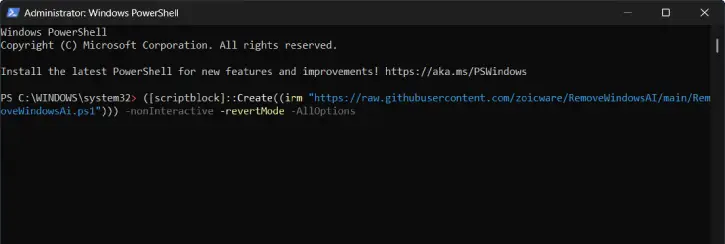
3. Wait while the script runs. It may take a few minutes.
4. When it finishes, restart your PC. After reboot your system should have the AI features disabled or removed as handled by the script.
How to Restore AI features (if you change your mind)
1. Open PowerShell as an administrator again.
2. Paste and run this command:([scriptblock]::Create((irm "https://raw.githubusercontent.com/zoicware/RemoveWindowsAI/main/RemoveWindowsAi.ps1"))) -nonInteractive -revertMode -AllOptions
3. Restart your PC. The script will attempt to bring back the AI features it removed.
ALSO READ: How to Enable or Disable the AI Actions Context Menu in Windows 11
Tips and troubleshooting
- If the script reports errors, check you ran PowerShell with administrator rights.
- If a new AI feature appears later, watch the script’s GitHub repository for updates and instructions.
- If you’re unsure about any change the script makes, restore using the revert command above or use a recent system backup/restore point.
Conclusion
Using this script is the fastest way to remove many Windows 11 AI features at once, especially for beginners who don’t want to hunt through multiple settings. Just be cautious: only run scripts from sources you trust and keep backups in case you want to revert changes. If you want, I can walk you through running the commands step‑by‑step.

