

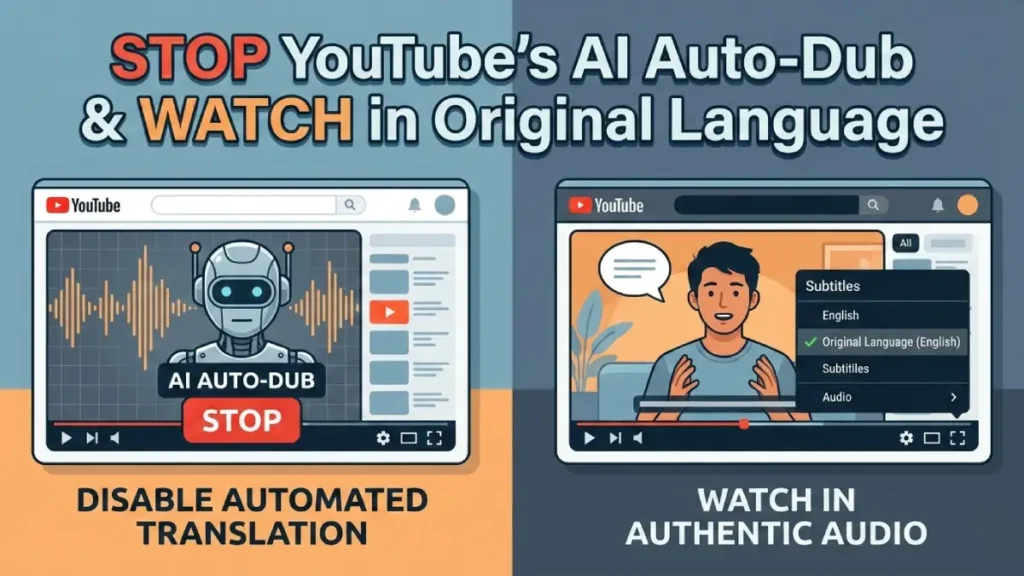
YouTube’s new AI-powered auto-dub can be convenient — but when it automatically plays a regional or foreign video in your phone’s default language, it ruins the original audio experience. If you’re seeing Hindi, Tamil, Spanish or other regional videos start in English (or another dubbed language), here’s how to restore the original audio or disable auto-dubbing entirely on your smartphone.
Why YouTube is Auto-Dubbing Videos
YouTube’s auto-dub feature uses AI to translate and dub videos into the device’s default language when the original audio differs. That means if your phone language is English and a creator uploads a video in Hindi, YouTube may automatically play a dubbed English version. The feature aims to increase accessibility, but it can be frustrating when you want authentic original audio.
Quick Fix: Switch Back to the Original Audio (Per Video)
If a video starts playing dubbed audio, you can switch it back in seconds:
1. Play the video that’s playing in the wrong language.
2. Tap the settings (cog/gear) icon at the top-right of the video player (mobile app) or bottom right on browser).
3. Choose Audio track.
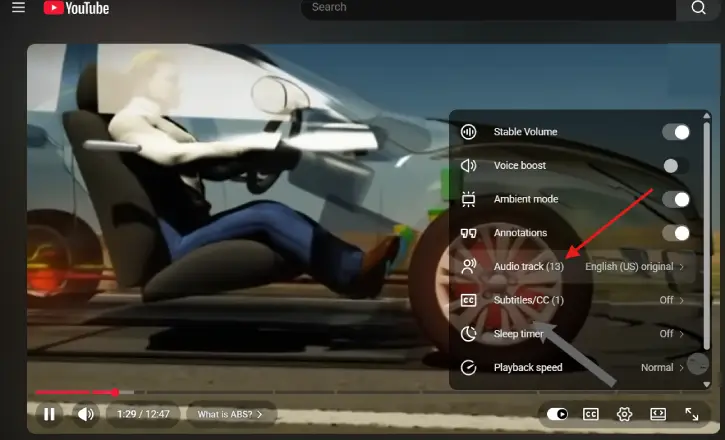
4. Select the original language (e.g., Hindi — Original).
5. YouTube will immediately switch to the original audio track for that video.
Permanent Fix: Disable Auto-Dub for Specific Languages
To stop YouTube from auto-dubbing videos in languages you want to hear in their original audio:
1. Open the YouTube app on your smartphone.
2. Tap You (your profile icon) at the bottom-right.
3. Tap the Settings (cog) icon at the top-right.
4. Go to Languages → Preferred languages.
5. Select the languages you want YouTube to leave in original audio (for example: Hindi, Tamil, etc.).
Tap Confirm.
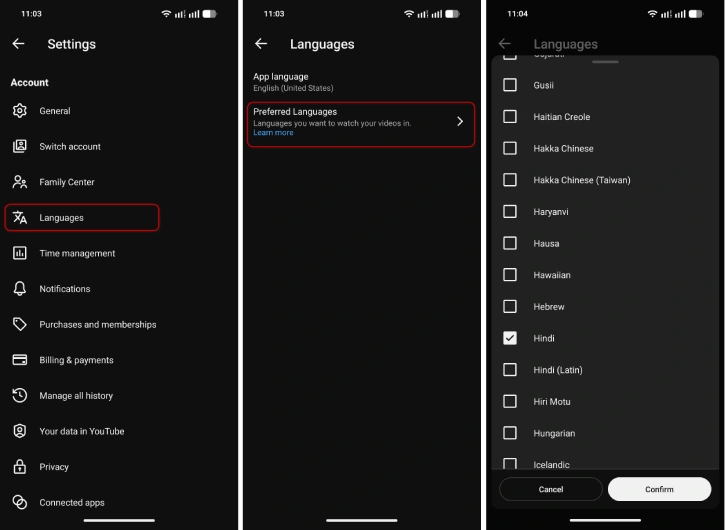
6. YouTube will stop auto-dubbing videos that are in the languages you selected.
Tips for the Best Experience
- If a video still defaults to dubbed audio after changing settings, use the per-video Audio track setting as a fallback.
- Keep the YouTube app updated — language settings and UX may move slightly between updates.
- For multilingual videos, captions and audio track options may both be available; choose audio for original spoken language.
Apply these simple steps to regain control over how YouTube plays foreign and regional videos — so you can always watch in the original language when you want to.
Conclusion
YouTube’s AI auto-dub can be useful but shouldn’t override your choice to hear original audio. Use the per-video Audio Track option to quickly switch back, or update your YouTube Preferred Languages to permanently prevent auto-dubbing for specific regional languages. These simple settings let you enjoy authentic videos in their native speech without losing accessibility features when you need them.

