

Tech companies are pushing AI into every corner of our digital lives, and web browsers have become the latest battleground for unwanted features. Microsoft Edge, Google Chrome, and Mozilla Firefox all come loaded with AI tools that many users never asked for – and frankly, don’t want.
If you’re like me, you prefer to visit a chatbot’s website or open its app when you actually need AI assistance. You don’t need it lurking in the background, potentially tracking your browsing habits and slowing down your browser performance.

The good news? There’s a simple way to remove all AI features from your browsers at once.
The Problem: AI Overload in Modern Browsers. Modern browsers have become bloated with AI features that most users don’t need:
- Microsoft Edge has Copilot integrated throughout the interface
- Google Chrome includes AI-powered features and experimental tools
- Mozilla Firefox is adding AI capabilities to compete with its rivals (latest version offers an option to disable “all AI features”)
While disabling individual AI tools is possible, it’s tedious and time-consuming. That’s where ‘Just the Browser’ comes in—a free script that removes all AI features, telemetry, and sponsored suggestions from your browser in one go.
What Is ‘Just the Browser’?
‘Just the Browser‘ is a community-created script that strips away unnecessary AI features and bloatware from popular web browsers. The best part? There’s nothing to install, and the developer provides both a PowerShell script and individual registry files for each browser.
Since it’s a script-based solution, there’s a small element of risk if something goes wrong. However, the developer has thought ahead and provided separate, easily reversible registry tweaks for Chrome, Edge, and Firefox – so you can undo any changes if needed.
How to Remove AI From Edge Using Registry Files
If you prefer a more cautious approach, you can use individual registry files for each browser. Here’s how I tested it with Edge:
Step 1: First, I download the Registry File from Just the Browser GitHub page. Right-click the page and select “Save as,” Choose “All Files” from the dropdown menu and save it as a .reg file

Step 2: Now, I double-clicked the .reg file. Clicked Yes to allow Registry Editor to make changes. Clicked Yes again at the second warning. The Registry Editor will confirm that all keys and values have been added.
Step 3: To verify the changes, I have launched Edge and confirm that Copilot has disappeared from the browser interface. Now, navigate to edge://policy to verify that all AI policies have been disabled.

Step 4: To reverse changes (If needed), download the “Registry file for uninstallation” from the same page, run it to restore all AI features.
The result was clean, AI-free browsing. Copilot was gone from Edge’s interface (though it still appeared on the Bing home page, which is a separate issue).
ALSO READ: How to Remove AI Features From Windows 11 (Beginner-Friendly Guide)
The Faster Method: Remove AI From All Browsers at Once
After testing the registry file method, I felt confident enough to run the all-browsers script. This approach is much faster and doesn’t require creating individual registry files.
What You’ll Need:
- Windows 11 (or Windows 10)
- Administrator access to your computer
- The PowerShell command provided by Just the Browser
Step-by-Step Instructions
Step 1: Open PowerShell as Administrator. To do so, right-click the Windows Start button, select “Terminal (Admin)” or “PowerShell (Admin)”
Step 2: Run the Script. Copy and paste this command:
& ([scriptblock]::Create((irm "https://raw.githubusercontent.com/corbindavenport/just-the-browser/main/main.ps1")))
Press Enter and wait for the script to load
Step 3: Choose Your Browsers. The script will present you with a menu of options for each browser:
- Type 1 for Google Chrome and press Enter
- Type 2 for Microsoft Edge and press Enter
- Type 3 for Mozilla Firefox and press Enter.
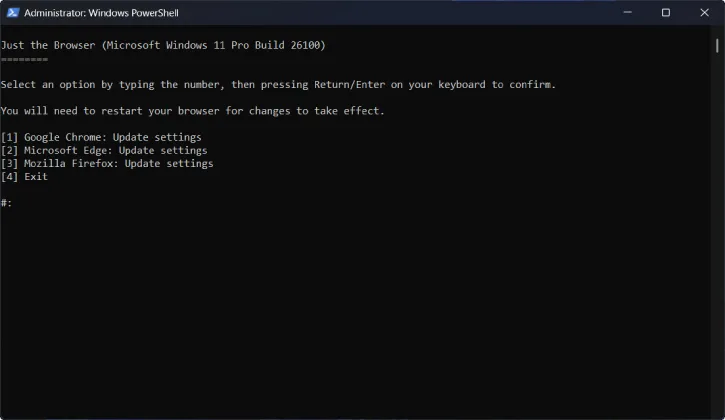
[The numbers may vary in your case]
The script downloads the appropriate registry file and your browser settings are automatically updated. The process is remarkably quick – usually under a minute for all three browsers. Now to exit, type 4. The PowerShell window will close.
Step 5: Verify the Changes. Relaunch each browser and confirm that AI features are gone. No AI Mode in Chrome, no Copilot button in Edge and all AI features disabled in Firefox.
Undoing the Changes
If you change your mind or something doesn’t work as expected:
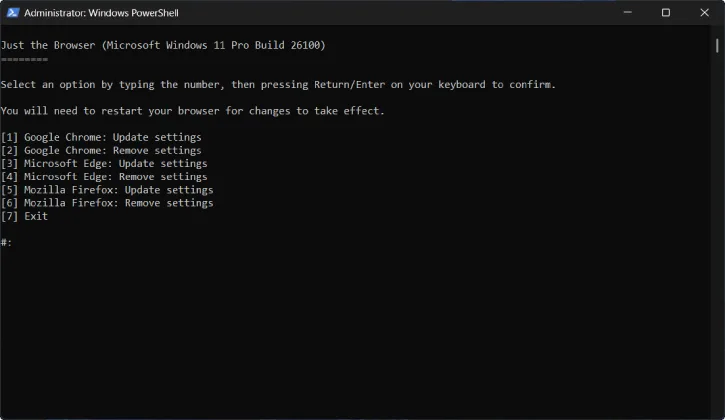
- Run the script again, type 2 for Chrome, type 4 for Edge and type 6 for Firefox (or the appropriate number shown on your PowerShell window).
- Next, type 7 to exit the PowerShell
- All AI features will be restored to their original state
My Results: A Cleaner Browsing Experience. After running the ‘Just the Browser’ script on all three browsers, I noticed immediate improvements:
- Cleaner interface: No more AI buttons cluttering the toolbar
- Faster performance: Fewer background processes running
- Better privacy: Reduced telemetry and tracking
- Peace of mind: No unwanted AI features lurking in the background
- The entire process took less than five minutes for all three browsers.
ALSO READ: How to Prevent Google from Accessing Your Emails for AI Training
Why This Matters
We shouldn’t have to fight our tools to use them the way we want. Tech companies are betting that users will either accept AI features or not know how to remove them. But with tools like ‘Just the Browser’, we have the power to take back control of our browsing experience.
As long as community-driven tools like this continue to work, we have less to fear from the ongoing AI overload that’s being forced on us.
Final Thoughts
If you’re tired of AI features cluttering your browser, ‘Just the Browser’ is a game-changer. It’s free, it’s reversible, and it works. Whether you choose the registry file method or the all-in-one PowerShell script, you’ll have a cleaner, faster, and more private browsing experience. The choice is yours—and that’s how it should be.

