

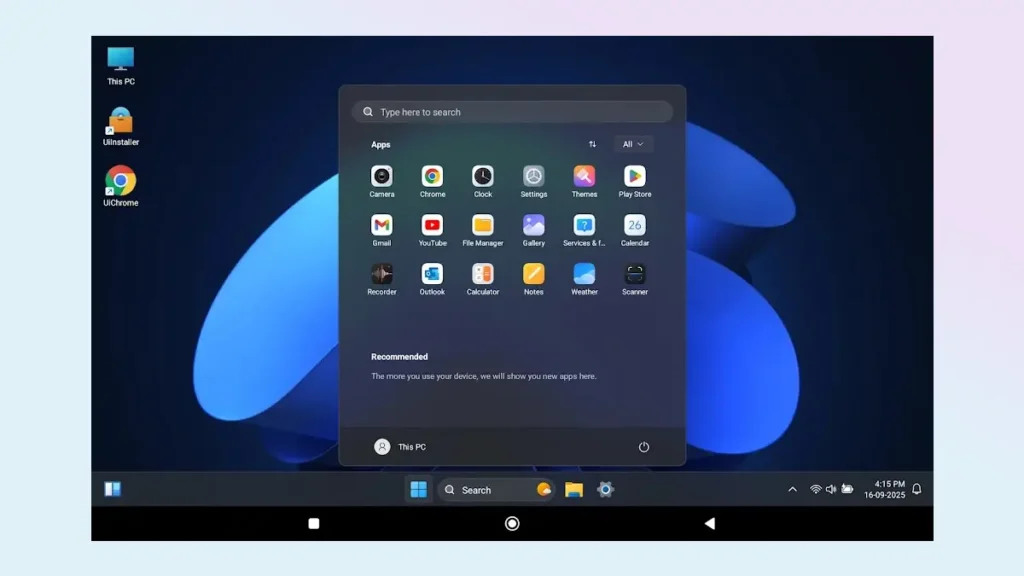
If you’ve ever wished your Android tablet felt more like a desktop computer, HyperDroid PC Launcher might be exactly what you need. This innovative launcher replaces your tablet’s standard home screen with a Windows 11-inspired desktop environment complete with a taskbar, Start menu, file explorer, and windowed apps – transforming how you work and multitask on mobile. If productivity is your priority on an Android tablet, this launcher could be worth considering.
What Is HyperDroid PC Launcher?
HyperDroid PC Launcher is a free, ad-supported Android launcher available on the Google Play Store that recreates the Windows 11 interface on your tablet. Rather than just applying a visual skin, it delivers genuine productivity features that make your tablet feel like a lightweight desktop machine.
Main features of HyperDroid PC launcher includes the following:
A functional, Windows 11 like taskbar and Start menu. It includes pinned apps, system tray showing Wi-Fi, volume, battery, and clock, Start menu listing all installed Android apps and Recommended section, and the Quick setting.
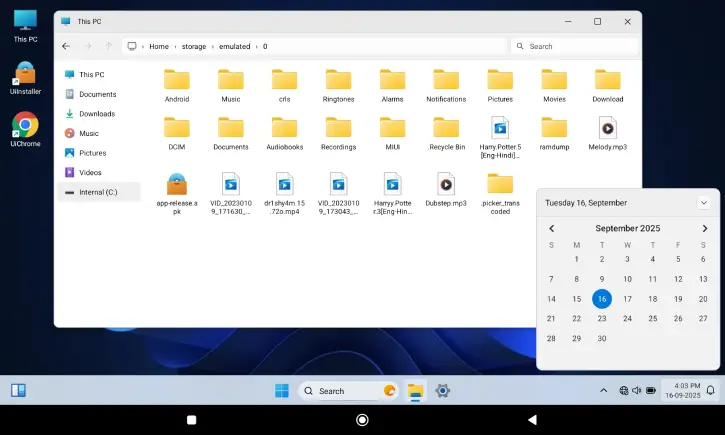
Built-in File explorer, which is a Windows-style file manager with a sidebar showing common folders – This PC, Documents, Downloads, Music, Pictures, and Videos.
Unlike the standard Android Chrome browser, HyperDroid includes a browser that supports extensions. You can even pin websites like YouTube or Instagram as desktop shortcuts, similar to Progressive Web Apps (PWAs) on a traditional PC.
Download and Install HyperDroid PC Launcher
1. Go to Google Play Store and search for “HyperDroid PC Launcher” or go to this page to download the app.
2. After installing the launcher, set it as your default launcher. Navigate to Settings > Apps > Choose default apps > Home app.
3. Once activated, every time you turn on your tablet, you’ll boot straight into the Windows 11 desktop environment instead of Android’s standard home screen.
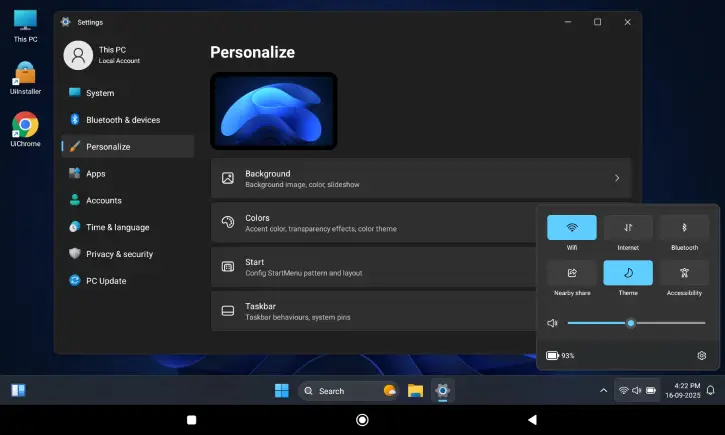
4. The built-in Settings app mirrors Windows 11, offering sections for System, Bluetooth & Devices, Personalize, Apps, Accounts, and Privacy & Security. You can change desktop wallpapers, adjust accent colors, enable transparency blur effects and configure taskbar behavior.
Performance and User Experience
During testing, HyperDroid ran smoothly with no noticeable lag or visual glitches. Apps opened quickly, the taskbar remained responsive, and switching between windows felt fluid. The ads are minimal and non-intrusive – barely noticeable during regular use.
While HyperDroid works on both tablets and phones, tablets are the ideal platform for this launcher.
Limitations to Consider
HyperDroid PC Launcher isn’t a complete Windows replacement, for example, you’re running Android apps, not Windows software. Also, the built-in tools like the file explorer and settings are more visual representations than full-featured alternatives
Conclusion
For Android tablet users seeking a more desktop-like workflow, HyperDroid PC Launcher is a game-changer. If you already use your tablet for productivity, this launcher adds a familiar interface that makes navigation and multitasking feel more natural and intuitive. It transforms your tablet into a desk-side assistant with genuine desktop-like functionality.
At no cost (with optional premium features), it’s worth trying if you’ve ever felt your Android tablet lacked the desktop feel you need for serious work.

