

Why I switched from SUM to BYROW (and why you should too)? I’ll be honest—I’ve been using the SUM function in Excel for years. It’s reliable, it’s simple, and it works. But then I discovered BYROW, and suddenly, doing calculations across rows felt less like a repetitive chore and more like having a smart assistant handling things for me.
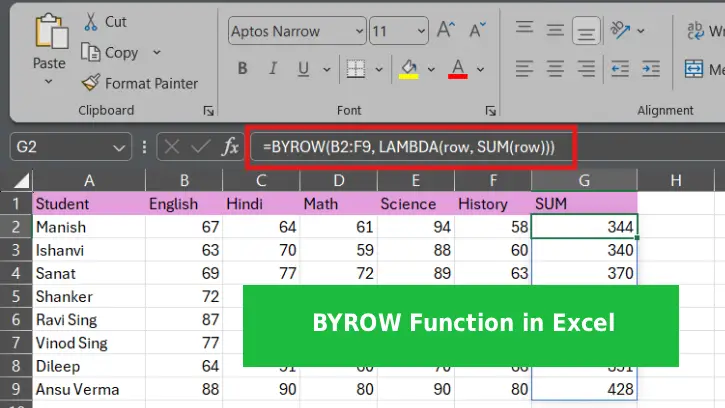
Here’s the thing: BYROW isn’t just a fancy replacement for SUM. It’s actually a completely different beast that happens to do what SUM does—but with way more flexibility and less manual work.
What’s the BYROW Function, Anyway?
BYROW is one of Excel’s newer dynamic array functions, introduced to make complex calculations easier and faster. Think of it as a function that takes a job you’d normally have to repeat across multiple rows and does it all at once.
The basic idea is that you give BYROW a range of data and tell it what calculation to perform on each row. Instead of writing individual formulas in each cell, BYROW spits out results for every row automatically.
Sounds simple, right? It is. And that’s the beauty of it.
Key Features of BYROW That Make It Special
Automatic array processing: BYROW processes each row without you having to copy-paste formulas down a column. This saves time and reduces errors.
Custom calculations: While SUM is locked into just adding numbers, BYROW lets you apply any function or formula to each row. Want to multiply, divide, or use a custom formula? BYROW’s got your back.
Cleaner spreadsheets: Because BYROW returns all results at once, you get less clutter and fewer individual formulas scattered across your sheet.
Flexibility: BYROW works with built-in functions like AVERAGE, MAX, MIN, or your own custom formulas. You’re not limited to one type of operation.
Less formula management: With SUM, you might need to copy formulas down or adjust ranges. BYROW handles it all in one shot.
How BYROW Actually Works?
The syntax looks like this:=BYROW(array, function)
array: The range of data you want to work with (e.g., A1:D10)
function: What you want to do with each row (e.g., SUM, AVERAGE, or a custom formula)
When you enter this formula, Excel looks at the first row of your array, applies the function, and spits out a result. Then it moves to the next row, does the same thing, and keeps going until it’s processed every row. All the results appear in a vertical list next to or below your data—without you needing to manually enter anything for each row.
Real-World Examples of BYROW vs. SUM
Example 1: Simple Row Addition
Using SUM (the traditional way):
You have students’ exam marks data across columns B, C, D, E, and F. You’d write a SUM formula in column G:=SUM(B2:E2)
Then you’d copy that formula down to rows 3, 4, 5, and so on. Every. Single. Row.
Using BYROW (the modern way):
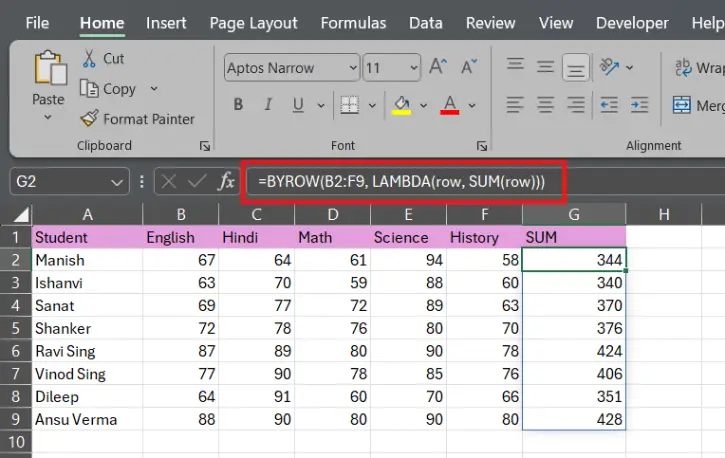
=BYROW(B2:F9, LAMBDA(row, SUM(row)))
Done. One formula. All rows get their totals instantly.
Example 2: Finding the Maximum Value Per Row
Using SUM method (more complex):
You’d need to write:=MAX(B2:E2)
And copy it down repeatedly.
Using BYROW:
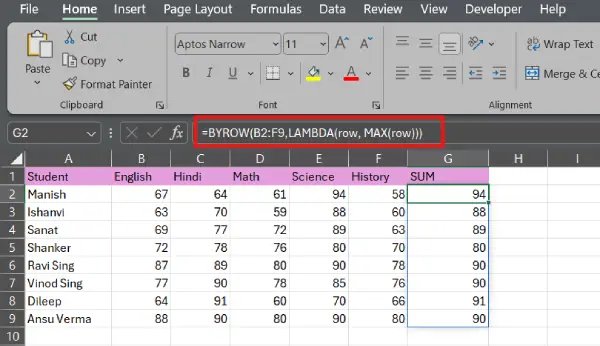
=BYROW(B2:F9, LAMBDA(row, MAX(row)))
Same simplicity, same result, less repetition.
Example 3: Custom Calculations
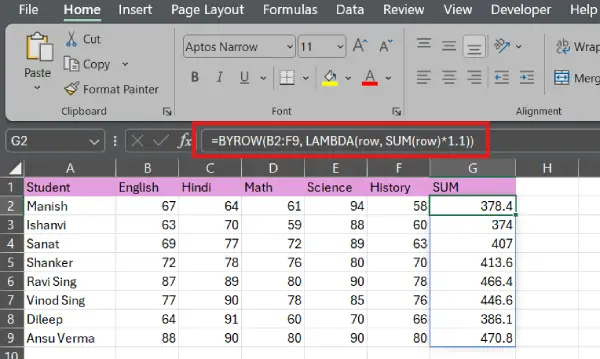
Let’s say you want to add the numbers in each row and then multiply by 1.1 (like adding a 10% increase). This is where BYROW shines.
With SUM method: You’d need a helper column with a formula like: =SUM(B2:E2)1.1
With BYROW: =BYROW(B2:F9, LAMBDA(row, SUM(row)1.1))
One line. No helper columns needed. Much cleaner.
Step-by-Step: How to Use BYROW in Your Spreadsheet
Step 1: Set up your data
Make sure your numbers are arranged in rows with columns next to each other.
Step 2: Choose a cell for your results
Pick a cell where you want your BYROW results to appear. Usually, this is in a column right next to your data (like column G if your data goes to column F).
Step 3: Enter the BYROW formula
Type your formula. If you want totals for each students’s row:
=BYROW(B2:E10, LAMBDA(row, SUM(row)))
Step 4: Press Enter
Once you hit Enter, Excel automatically fills in the results for every row. No dragging, no copying, no fussing.
Step 5: Adjust if needed
If your data range changes, just edit the formula’s array range (the first part). The rest updates automatically.
When to Use BYROW vs. When to Stick with SUM
Use BYROW when:
- You need to perform the same calculation on multiple rows
- You want a cleaner spreadsheet with fewer individual formulas
- You’re doing something more complex than basic addition
- You’re already working with dynamic arrays in Excel
Stick with SUM when:
- You only need to calculate one or two rows
- You’re working with an older version of Excel that doesn’t support dynamic arrays
- Your team isn’t familiar with newer functions and you want to keep things simple
Note: Here’s the one thing to watch out for: BYROW is a dynamic array function, which means it’s only available in newer versions of Excel (Excel 365 and Excel 2021 and later). If you’re using older versions, you’re stuck with SUM and its traditional copy-down approach. Also, some of Excel’s web-based features might not fully support BYROW yet, so test it out before rolling it across your whole team.
Why This Matters (Beyond Just Saving Time)
Using BYROW instead of SUM might not sound revolutionary, but it actually changes how you think about spreadsheets. Instead of writing formulas cell by cell, you’re thinking in terms of batch operations. That mental shift makes you more efficient and helps you create spreadsheets that are easier to maintain and less prone to errors.
Plus, once you get comfortable with BYROW, you’ll start seeing other dynamic array functions—like BYCOL, FILTER, and SEQUENCE—as tools that can simplify even more of your work.
Conclusion
BYROW is one of those functions that seems like overkill until you actually use it, and then you wonder how you ever lived without it. It takes the repetition out of row-by-row calculations and gives you the power to do way more than SUM ever could. Whether you’re summing quarterly sales, averaging monthly expenses, or applying custom formulas across your data, BYROW makes it faster, cleaner, and less error-prone.
If you’re ready to move beyond the traditional SUM approach and want your spreadsheets to feel more modern and efficient, give BYROW a try. Your future self—the one who doesn’t have to copy formulas down a thousand rows—will thank you.

