

Microsoft is adding an option that lets Windows automatically open apps in a maximized window, so you won’t have to resize them yourself. Windows 11 usually remembers the size of an app window and restores it the next time you open it, but this new setting will let you make apps open maximized every time you open the app.
The new “Open apps maximized” is an accessibility feature in Windows 11 that automatically opens apps in a maximized window. In this guide, let us learn how to turn the feature on or off in Windows 11.
This feature is especially helpful for people who use screen readers, magnifying tools or small screen sized devices. it’s also useful for anyone who prefers working in a consistent, full-screen app layout.
Steps to Make Apps Full Screen in Windows 11
1. Open the Settings app by pressing Win + I.
2. Click Accessibility, then select Visual effects.
3. Turn on the Open apps maximized toggle to make apps open maximized.
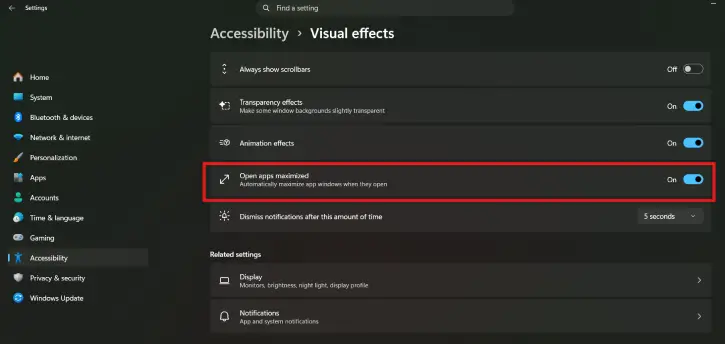
4. To disable the feature, turn off the Open apps maximized toggle.
FYI, this an experimental feature, and is part of the Windows Insider build released on 21 August 2026, with the build number 26340.9233 for the Experimental version and 26220.9223 for the more stable Beta version. This feature may or may not be available in the stable build of Windows 11.
Final Thought
Windows 11’s Open apps maximized setting is a small but useful accessibility improvement. It saves you from manually resizing windows and provides a more consistent workspace, whether you use magnification, a screen reader, or simply prefer apps to open full screen.

