

Windows 11 File Explorer updated with a small, but a very useful feature that makes browsing folders even easier. You can now middle-click folders anywhere in File Explorer to open them in a new tab, making it faster to manage files and switch between directories.
This feature is especially helpful if you work with multiple folders at the same time. Instead of opening a separate window each time, you can keep everything organized in tabs and move around more efficiently.
With the August 2026 Patch Tuesday update for Windows 11, this middle-click support now works in more places inside File Explorer. Earlier, middle-clicking was mostly limited to the left navigation pane. Now, it also works on the Home page and in the address bar, giving users a smoother and more consistent experience.
Using Middle-Click to Open a Folder in a New Tab
- To open a folder in a new tab, just middle-click (press scroll wheel) it.
- If you want to close a tab, middle-click that tab too.
- It’s a simple shortcut, but one that can save time during everyday file management.
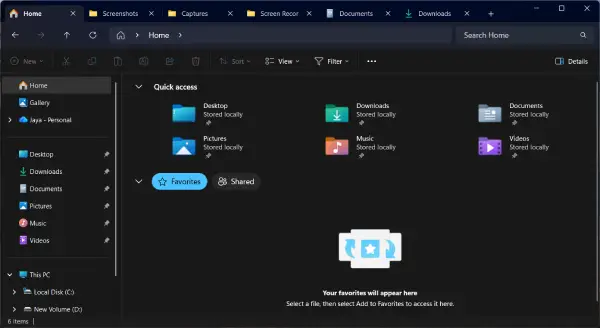
FYI, the built-in File Explorer has become more useful in Windows 11 thanks to features like tabs, tab duplication, and now middle-click support. These small changes may not seem major, but together they make navigating folders much faster and more convenient.
How to Use Middle-Click to Open Several Explorer Windows
Instead of opening several folders in new tabs, you can also use middle-click to open several File Explorer windows in Windows 11. This gives you a quick way to launch multiple windows when tabs aren’t enough.
- First, pin the File Explorer to your taskbar
- Now, middle-click (press scroll wheel) the File Explorer icon on the taskbar to open a new File Explorer window.
- Repeatedly clicking the icon will open new File Explorer windows.
Final Thought:
This new middle-click feature may be a small addition, but it makes File Explorer feel more flexible and user-friendly. Whether you prefer tabs or separate windows, Windows 11 now gives you better ways to browse, organize, and manage your files.

