

Microsoft has added a Game Assist feature for gaming lovers on Windows 11 that you can access via Edge browser. The new Game Assist feature in Edge browser helps users find in-game help, browse the web, listen to music, chat with friends, record the game play, and more without leaving the game.
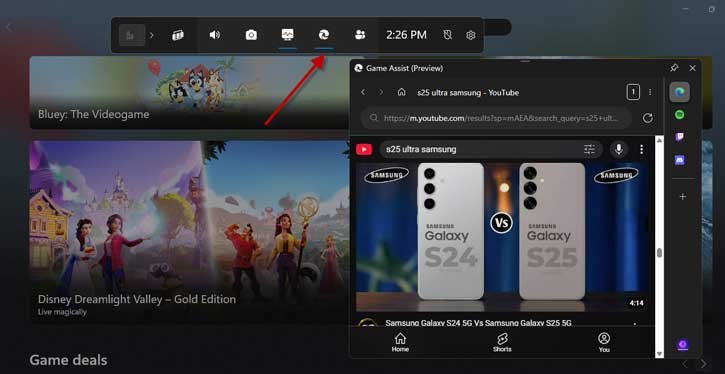
In this guide, let us learn how to enable and use the Game Assist feature of Microsoft Edge browser. This feature will be helpful when you are playing a game and need to browse the web without leaving the game. Previously, it wasn’t possible on Windows 11 PCs, as switching to the browser or another app would cause you to lose access to your game.
The Game Assist feature is available with latest version of Microsoft Edge browser (current version 132), and Windows 11 22H2, 23H2 and 24H2 versions.
How to Enable Game Assist Feature in Microsoft Edge?
1. Open Microsoft Edge browser on Windows 11 and navigate to Settings > Appearance.
2. In Appearance, scroll down, until you see “Game Assist (Preview)” option.
3. Click on the “Install Widget” button next to the Game Assist option.

4. It will install the widget and add the Game Assist feature to Edge browser.
You have now enabled the Game Assist feature in your Edge browser. Here’s how to use it. Please note that it will only work with the Game Bar on your Windows 11 device.
How to Use Game Assist Feature in Windows 11?
1. You can bring up the Game Assist with the Win + G shortcut key.
2. Whenever you are playing a game simply press Win + G keys together to launch the Game Bar on your computer.
3. You’ll see the Game Assist widget along with Game Bar on your screen.
4. You can use the mini browser to surf the web, play music on YouTube and more.
5. To leave the Game Assist press the Win + G shortcut again or on any empty area.
Please note that Game Assist is currently a testing feature and might not work properly. The widget will close automatically when there is no activity. It does not allow right-clicking so you cannot right-click on links, images or the web page.
With the launch of Game Assist Microsoft seems to be trying to make Edge look like a web browser focused on gaming like the well-known Opera GX. In addition, to the browsing feature the Game Assist feature also gives advice and recommendations for games, including Diablo IV, Fortnite, League of Legends, Minecraft, Indiana Jones and the Great Circle and Marvel Rivals and many more.

