

God Mode in Windows allow users to access almost all settings without needing to navigate through multiple setting. It offers a centralized location where users can conveniently access nearly every setting of the Windows operating system. Here is how to create a separate God Mode for specific sections in Windows 11.
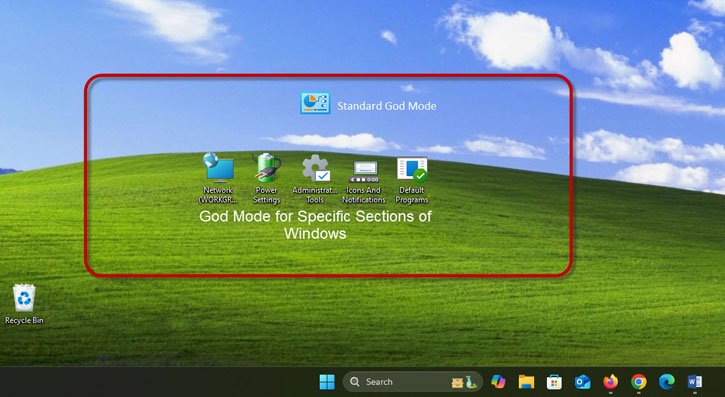
Creating the standard God Mode in Windows 11 is simple. Simply create a new folder on your desktop, right-click it, and rename it to GodMode.{ED7BA470-8E54-465E-825C-99712043E01C}.
An icon for God Mode will appear on your desktop. Double-click the icon to open the window, where you can access various settings for your computer.
You can also create separate God Mode for specific sections of Windows in Windows 11, which can be useful if you frequently need to access those settings. The process is similar to creating the standard God Mode, and the folder icon will change to reflect the specific section you are targeting.
You can create separate God Mode for My Computer, Network, Power settings, Programs and features, Firewall and security, Icons and notifications, Administrative tools, credentials and logins, and more sections. In this guide, let us learn how to create different God Mode. It will help you access Windows settings more easily.
How to Create God Mode for Specific Sections of Windows
1. First, create a new folders by right clicking on the desktop.
2. Rename each folder with the following God Mode names.
- Administrative Tools.{D20EA4E1-3957-11d2-A40B-0C5020524153}
- Credentials and Logins.{1206F5F1-0569-412C-8FEC-3204630DFB70}
- Default Programs.{17cd9488-1228-4b2f-88ce-4298e93e0966}
- Firewall and Security.{4026492F-2F69-46B8-B9BF-5654FC07E423}
- Icons And Notifications.{05d7b0f4-2121-4eff-bf6b-ed3f69b894d9}
- My Computer.{20D04FE0-3AEA-1069-A2D8-08002B30309D}
- Network.{208D2C60-3AEA-1069-A2D7-08002B30309D}
- Power Settings.{025A5937-A6BE-4686-A844-36FE4BEC8B6D}
- Printers.{2227A280-3AEA-1069-A2DE-08002B30309D}
- Programs and Features.{15eae92e-f17a-4431-9f28-805e482dafd4}
By making a Mini God Mode in Windows 11 you can get an simple way to go to important system settings. This feature gives easy access, to the parts you use the most making your work better and faster while you use the Windows 11 operating system.

