

The Firefox browser for desktop is introducing a new feature called “Visual Search,” like those in Chrome and Edge, which allows users to search for a selected image on a webpage using Google Lens by simply right-clicking the image.
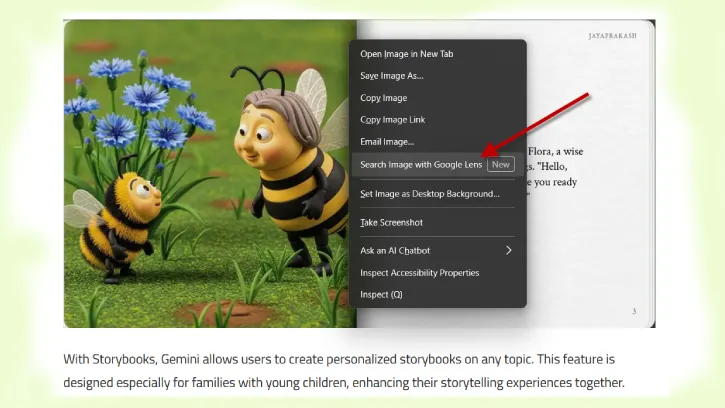
Currently, the “Search Image with Google Lens” feature is disabled in the browser (v142), but you can easily enable it. In this guide, we will learn how to activate this feature in the Firefox browser.
Reasons to Use Visual Search in Web Browsers
Before get to know how to enable “Search Image with Google Lens” option in Firefox, let us know how it helps in your search. Google Chrome and Microsoft Edge has already had visual search this feature. Chrome comes with Google Lens and Edge features Microsoft’s Bing Visual search.
Visual Search in web browsers enhances user experience by allowing users to search for information using images instead of text. This feature enables users to:
- Quickly Identify Objects: Users can find details about products, landmarks, or any visual content by simply right-clicking on an image.
- Streamline Research: It simplifies the process of gathering information, making it easier to find related content or similar images.
- Enhance Accessibility: Visual search can assist users who may struggle with text-based searches, providing an alternative way to access information.
How to Enable Search Image with Google Lens Option in Firefox
1. Open the Firefox browser and enter about:config in the address bar, then press Enter.
2. Click on the “Accept the Risk and Continue” button.
3. In the preference search box, type visualSearch.
4. Locate the preference named browser.search.visualSearch.featureGate.
5. Double-click on this preference to change its value from False to True and then close Firefox.
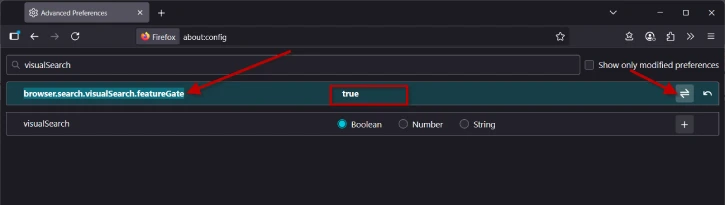
6. This will add the “Search Image with Google Lens” option to the context menu in your browser.
7. To disable the feature, double-click the preference again and change the value back to False.
Visual search lets users find images online by using selected pictures. When you activate the new visual search feature in Firefox, a new option called “Search Image with Google Lens” appears when you right-click on an image on a website.
If you choose the “Search Image with Google Lens” option, Firefox will open a new tab with the Google Lens search page, where you can discover similar images.
Conclusion
Visual Search makes browsing more intuitive and efficient, catering to diverse user needs. Firefox will implement this feature soon to the browser, meanwhile you can enable this experimrntal feature using the above guide.

