

Windows 11 introduces a convenient feature known as “End Task,” which allows users to quickly terminate unresponsive applications directly from the taskbar. This functionality is particularly useful when an app freezes or becomes unresponsive, saving you the hassle of navigating through the Task Manager.
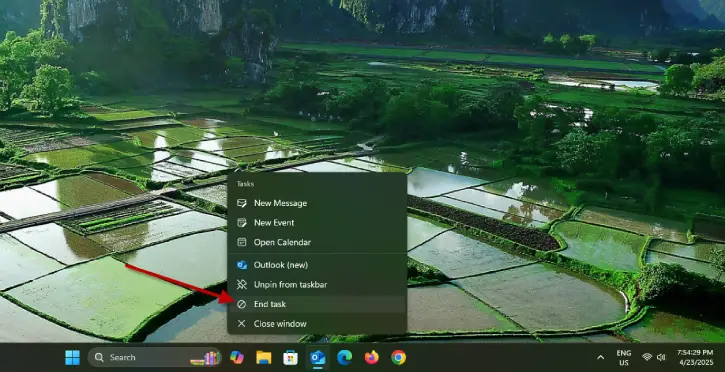
To access the End Task option, simply right-click on the icon of the app on the taskbar. This quick action provides an efficient way to manage your applications without the need to open the Task Manager, streamlining your workflow and enhancing your overall user experience.
The End Task option in Windows 11 is a valuable tool for managing unresponsive applications, but it is disabled by default. To take advantage of this handy feature, you’ll need to enable it manually. Here’s how to activate the End Task option on Windows 11.
How to Enable End Task Feature on Windows 11
Update [Dec 27, 2025]: On Windows 11 you can now force-close unresponsive apps from the Taskbar using an “End task” option. This feature is disabled by default and must be enabled manually; it was previously available only as a developer option but is now accessible to all users. Here’s how to turn it on.
To activate the End Task feature in Windows 11, follow these simple steps:
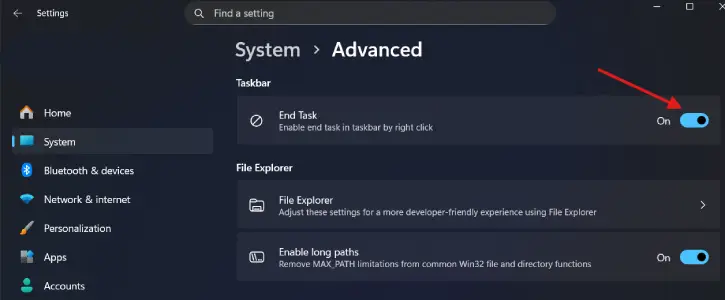
1. Open the Settings app and select System menu.
2. Click the Advanced option on the right pane.
3. On the next page, turn on the End Task option.
Enable End Task option to Taskbar from Developer Options
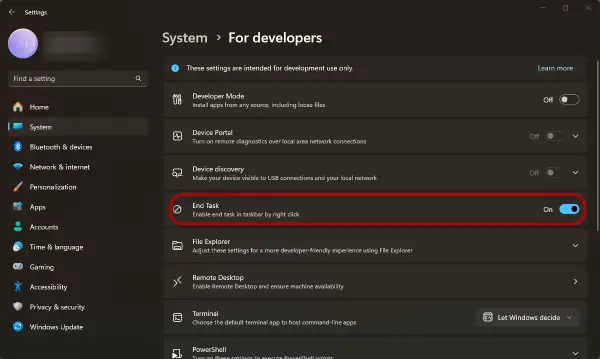
1. Open the Settings App: Click on the Start menu and select the Settings app (the gear icon).
2. Select System: In the left sidebar, click on “System.”
3. Navigate to For Developers: Scroll down and find the “For Developers” option in the menu.
4. Toggle On the End Task Option: In the development settings, enable the End Task feature by toggling it on.
How to Use End Task Feature for Unresponsive Apps
1. Once you’ve enabled this feature, you can easily close unresponsive applications.
2. Simply right-click on the taskbar of the app you want to terminate (make sure the app is open or running) and select the “End Task” option.
3. The application will close immediately, allowing you to regain control of your system.
Important Note on the End Task Feature in Windows 11
It’s essential to understand that the End Task option will not terminate system application processes, such as the File Explorer. For managing system processes, you’ll need to rely on the traditional Task Manager. This tool provides a comprehensive view of all running processes, allowing you to handle system applications effectively. So, while the End Task feature is great for quickly closing unresponsive apps, remember to use Task Manager for any system-level tasks.
Conclusion
Whether you’re a casual user or a tech enthusiast, mastering the End Task feature in Windows 11 can significantly improve your productivity. Say goodbye to frustrating freezes and hello to seamless multitasking with this handy tool at your fingertips!

