

The “Memory Full” message is an uncommon issue on ChatGPT, but many users face it often. This message is not related to your chat history, so clearing the chat history won’t resolve the issue. This guide explains what is “Memory Full” message in ChatGPT and how to fix this problem.
FYI, ChatGPT stores data you’ve chosen to share, such as your name, writing style, and objectives, allowing it to customize its responses. When the AI reaches its limit for storing your personalization data, you will receive a “Memory Full” message.
Deleting outdated or unnecessary memories is the solution to fix this issue, and it will enable you to save new preferences. It will also ensure that ChatGPT remains tailored to your needs.
ALSO READ: What is ChatGPT’s Background Conversation for Smartphone And How to Enable it
OpenAI has not revealed the specific storage capacity for both free and paid users, but it is limited. Free users have a smaller storage allowance compared to paid subscribers. If you encounter a “Memory Full” message, you’ll need to remove older entries or clear all memory to make space for new ones.
In this guide, let us learn how to clear ChatGPT memory both on Android and Windows app.
How to Fix the ‘Memory Full’ Message on ChatGPT
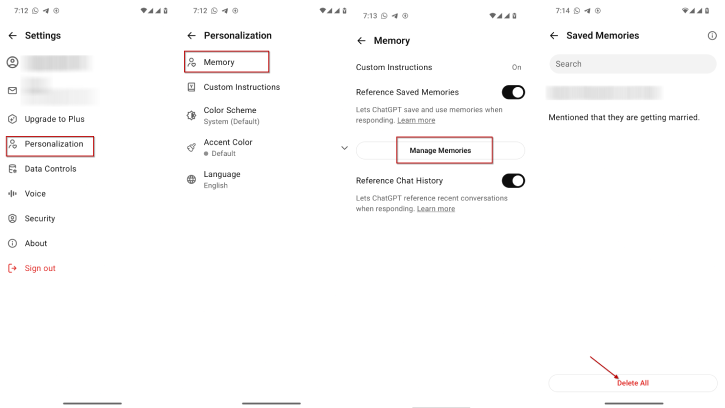
On Your Android Device:
- Open the ChatGPT app.
- Tap on your profile name.
- Select the Personalization option.
- Choose Memory and then tap on Manage Memories.
- On the Manage Memories page, tap “Delete All” to clear and reset the memory.
On Your Computer:
- Launch ChatGPT and click on your profile.
- Select the Settings option.
- Click on Data Controls and then choose Personalization.
- Click the Manage button for the Manage Memories setting.
- For each memory you wish to erase, click the Delete (trashcan) button.
- To clear and reset all memories, click the Delete All button.
After completing the above steps, the chatbot will have more space to store your personalized information.
In addition to managing memory, you can adjust various settings in ChatGPT to enhance your experience and privacy. You prevent OpenAI from using your data for AI training purposes, and manage and delete shared links to ensure your chats do not appear in search engines or fall into the wrong hands.

