

Currently, ChatGPT is my AI chatbot. It helps me find answers to my questions and gives me information on many topics making learning more fun and easier. I installed the ChatGPT app on my phone and on my computer, and one thing I liked I can even launch ChatGPT from any screen on my PC using the Companion Window feature.
Did you know that you can access ChatGPT from any screen, on your Windows and Mac systems? You can launch ChatGPT while doing research, playing games scrolling through photos and more all with a shortcut. The Companion Window feature makes this possible.
In this guide, let us learn how to launch ChatGPT app on your computer from any screen using the Companion Window feature.
How to Launch ChatGPT From Any Window on Windows and Mac?
1. Download official ChatGPT app from here and install it on your computer.
2. After installation, launch the app and sign-in with your account.
3. Now, click your profile icon shown at the bottom left of your screen.
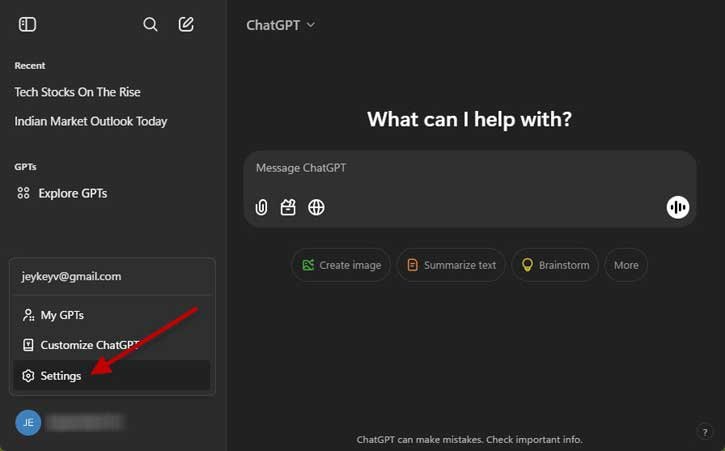
4. Next, select Settings from the menu list and click on App.
5. Now you will see the Companion Window option at the right side of the window.
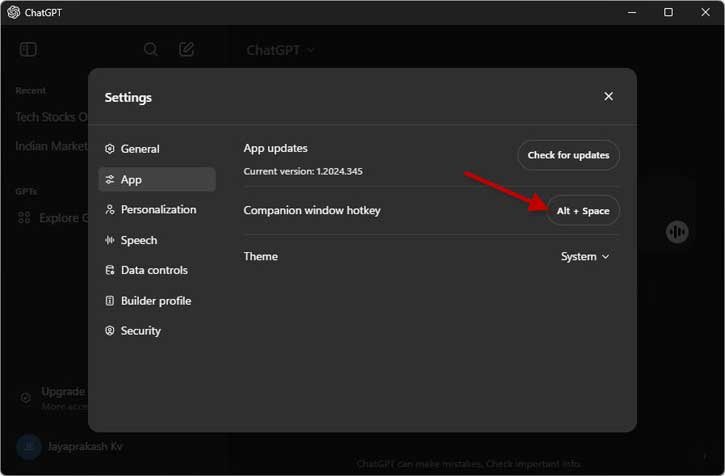
6. Now, if need you can assign a shortcut key to launch ChatGPT from any window.
7. Click on the keys, and once it says recording, press your desired keys.
You have now set a shortcut key to launch ChatGPT from any screen. ChatGPT app offers various shortcut keys for easy access of certain actions, and some of these shortcuts can also be used in the web version.
Available Keyboard Shortcuts for ChatGPT
The AI chatbot offers a few keyboard shortcuts that will help you navigate and interact with it more efficiently. By pressing the Ctrl + / keys will display available shortcut.
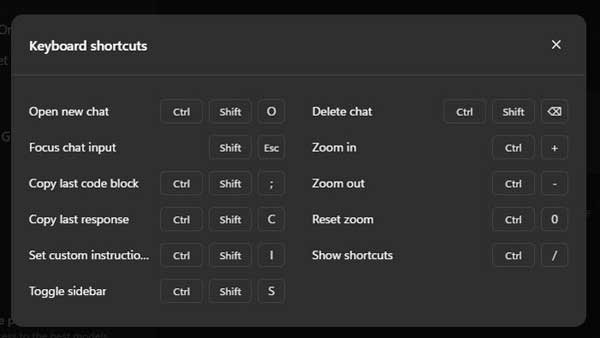
- Open new chat: Ctrl + Shift + O
- Focus chat input: Shift + Esc
- Copy last code block: Ctrl + Shift + ;
- Copy last response: Ctrl + Shift + C
- Set custom instructions: Ctrl + Shift + I
- Toggle sidebar: Ctrl + Shift + S
- Delete Chat: Ctrl + Shift + Delete
- Zoom in: Ctrl + +
- Zoom out: Ctrl + –
- Show shortcut: Ctrl + /
I have found that these shortcuts work seamlessly across both the web-based and app versions of ChatGPT. Mastering these keyboard shortcuts can significantly improve your productivity and overall experience when you use the AI chatbot.

