

Microsoft is integrating artificial intelligence into Windows 11 to help you perform a range of tasks efficiently and effectively. One of the most useful AI features in Windows 11 is Smart App Control, which uses AI to detect and block malware and potentially unwanted programs. It will boost the security of your PC by protecting it from security threats.
How Does AI Protect Your Windows 11 PC Using Smart App Control?
Let us learn what is Smart App Control, how to enable it, and how does it protect your Windows 11 computer from malware and unwanted programs. Smart App Control protects your PC from threats by blocking apps that’re malicious or untrusted.
Smart App Control works with Microsoft Defender and other antivirus software to help keep your Windows 11 computer safe from malware adware, and other types of potentially unwanted programs that could compromise your systems security and performance.
How to Enable Smart App Control on Your Windows 11 PC?
Smart App Control is only available in clean installs of Windows 11. It will not be available on PCs that have upgraded from Windows 10. To enable it you will either need to reset your PC or re-install Windows 11.
1. Type “smart app control” in the Windows search box and click the corresponding result.
2. You will see “On”, “Evaluation”, and “Off” options.
3. The “On” option will block malicious and untrusted apps when it detects them.
4. The “Evaluation” option won’t block anything, but will decide whether you’re a ‘good candidate’ for the feature. Once you qualify, it will automatically switch on SAC, otherwise it will be turned off.
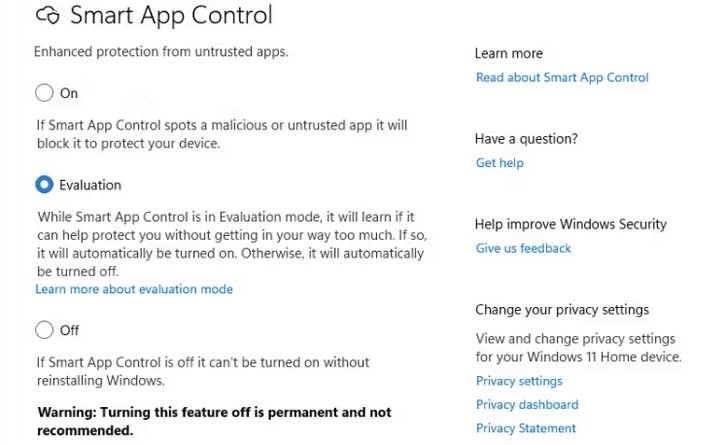
Note that, if Smart App Control is in the “Off” position and the other two options, “Evaluation” and “On”, are greyed out, you’ll need to reinstall Windows 11 to activate the feature.
Important: If you decided to turn off Smart App Control, it will be permanent. Microsoft do not recommend to turn off this feature.

