

Microsoft released the fifth Moment Update for Windows 11 in February 2024 with several new features. The Generative Erase tool for the Photos app is one of the new features the update brings to Windows 11 users. This new feature lets you remove unwanted objects from your photos without the help of any professional editing app.
The Generative Erase tool for the Photos app is an artificial intelligence (AI) feature that lets you “fix and remove distractions” from your pictures. In this guide, let us learn how to use the Microsoft Photos app to remove unwanted images from a picture.
How to Remove Objects From Pictures Using Microsoft Photos App?
1. Open the Photos app and choose a photo from your Pictures folder, or double-click to open the picture.
2. Next, click the Edit image (Ctrl + E) option to open the editor window.
3. In the new window, click the Generative Erase button, then, with the brush tool, draw over the object you want to remove.
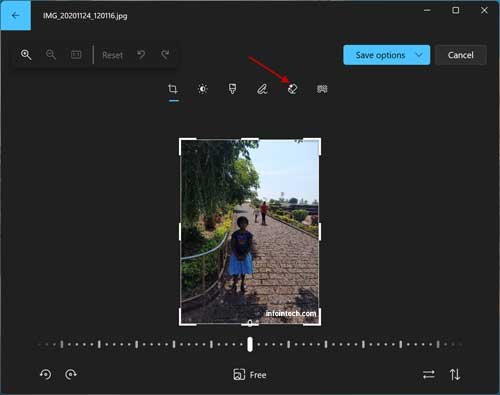
4. When you erase an area, you’ll see the ‘Area or object erased’ message at the bottom.
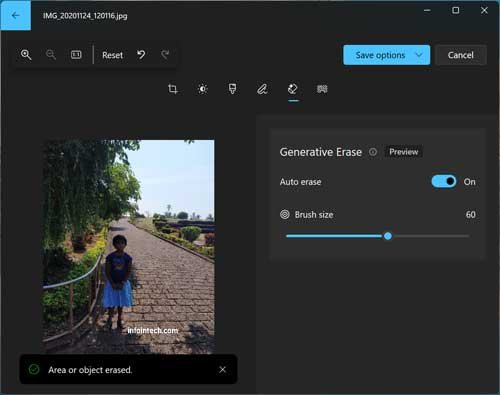
5. If the object isn’t completely removed, repeat the erase process.
6. Click ‘Save options’ at the top, then choose the required option to save your image.
In our example (see above pictures), two persons are clearly removed from the photos. I’ve used the Generative Eraser brush three times to completely wipe the object from the photo.
Conclusion
Microsoft has introduced several new features to its Photos app, aiming for a seamless photo management and editing experience on Windows 11. In the near future, you will be able to use Windows Copilot AI assistant to enhance your Photos app experience.
For example, the recent Copilot plug-in integration (as of this writing, it is an experimental feature) for the Photos app lets you create and view slideshows, edit images, and set them as the background of your Windows computer.

