

Losing your PC can be a stressful experience, but with the Find My Device feature on Windows 11, you can locate and lock your lost computer. Here’s how to use this handy tool.
Find My Device is a built-in Windows 11 feature that help you locate your lost or stollen PC, laptop, or Surface devices. The feature is similar to Apple’s Find My app and Android’s Find My Device. If you have turned on Find My Device on your lost Windows 11 PC, you can track it from Microsoft’s Devices site. Also, you can lock the PC and display a message on lost device.
How to Find and lock a Lost Windows 11 Device?
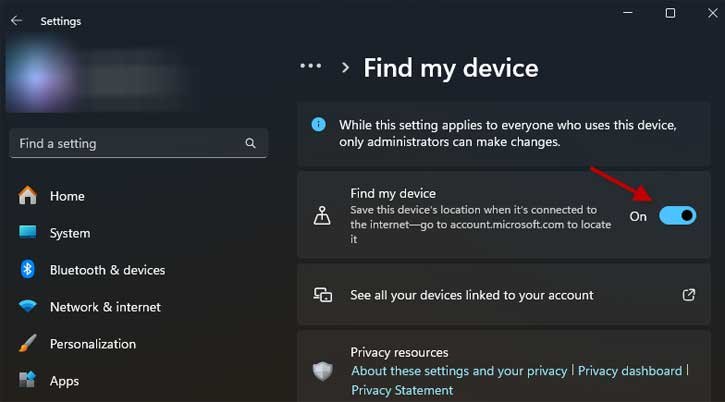
1. First, make sure Find My Device is enabled on your Windows 11 PC. It is enabled by default. Verify it by going to Settings, then click on “Update & Security.” From there, select “Find My Device” and toggle the switch to turn it on.
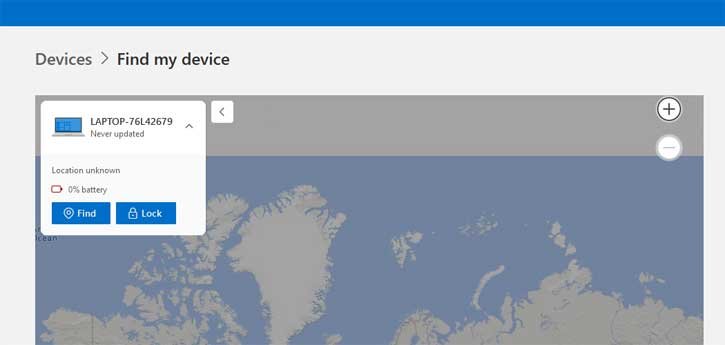
2. To find a lost Laptop or PC, you can access Find My Device from another device. Open a web browser and go to account.microsoft.com/devices. Sign in with your Microsoft account credentials.
3. Once you’re signed in, you’ll see a list of devices associated with your Microsoft account. Find your lost PC and click on “Find” button to track its location. If your PC is online, its location will be displayed on a map. Click on the plus button to zoom the map to get precise location.
4. You can also lock your PC remotely to prevent unauthorized access. Click on the “Lock” button, add any message using the text box, for example your contact information, and then, at the bottom, click “Lock.”
Additionally, you can choose to play a sound on your PC, which can help you locate it if it’s nearby. This feature can be particularly useful if you’ve misplaced your PC within your home or office.
Remember, for Find My Device to work, your lost PC must be connected to the internet and have location services enabled. It’s also important to note that Find My Device is only available if you have a Microsoft account and have signed in to your PC with it.
Conclusion
By following these steps, you can use Find My Device on Windows 11 to track and lock your lost PC, providing you with peace of mind and increased security.

