

File Explorer is a main part of the Windows operating system. It helps you manage your files. Though, File Explorer has undergone important UI changes in Windows 11, it does not mean it is free from issues. File Explorer crash is the main issue, and there are various reasons for it. In this guide, let us learn how to easily fix File Explorer crashes in Windows 11.
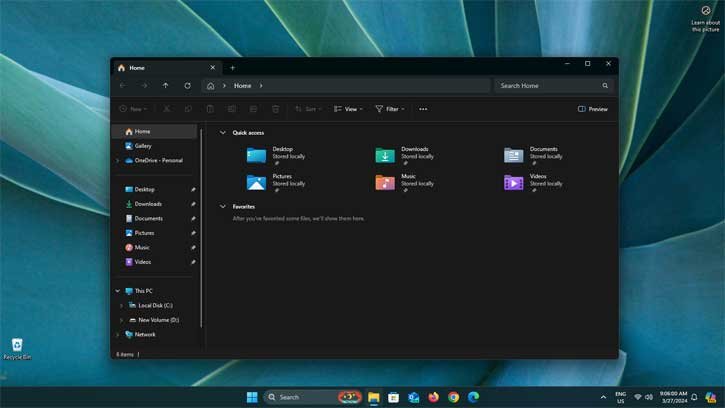
Third-party apps and incompatible software, or outdated applications are the major causes of File Explorer crashes in Windows 11. For example, If you have installed an old version of Photoshop, such as Photoshop CS4 or Adobe Acrobat Reader DC, and when you open File Explorer from the Windows 11 taskbar, it will not open. Similarly, a few right-clicking options, like the create new folder, will not be available in the menu.
The reason behind the Windows 11 File Explorer crash due to Photoshop CS4 is a file called BIB.dll. Also, you will get “unable to load image BIB.dll,” a Win32 error, or a warning “unable to verify timestamp for BIB.dll.”
Fix Windows 11 File Explorer Crash Due to Incompatible Software
Method 1:
The simplest way to fix the File Explorer crash is to uninstall the outdated software, in this example, Photoshop CS4, from your Windows 11 PC. Uninstalling the software, File Explorer, and right-clicking on the desktop works again.
However, if you want to use the software for some reason, then follow the below steps.
Method 2:
1. Open Registry Editor and navigate to HKEY_CLASSES_ROOT\AllFilesystemObjects\shellex\ContextMenuHandlers.
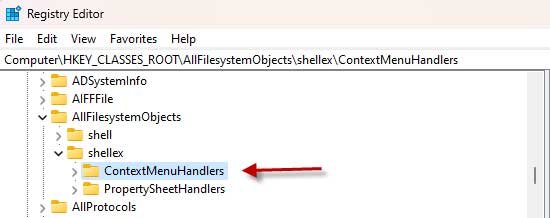
2. Next, open ContextMenuHandlers and remove the folder/key: {C95FFEAE-A32E-4122-A5C4-49B5BFB69795}
3. Next, navigate to HKEY_CLASSES_ROOT\Directory\Background\shellex\ContextMenuHandlers.
4. Click the ContextMenuHandlers and remove the folder/key: {C95FFEAE-A32E-4122-A5C4-49B5BFB69795}
5. Restart the Windows 11 PC, File Explorer crash, due to outdated Adobe Photoshop software, should be fixed.
Conclusion
As said, there are several reasons for File Explorer crash in Windows 11. If you are facing this issue recently, uninstall any old or outdated software you have installed lately.

