

Notepad in Windows 11 offers a tabbed interface and an auto‑saving feature. These functions can be useful, but they also have drawbacks. When you open the text file more than once, Notepad creates a new tab for each instance. As a result Notepad shows the file in many tabs. The following steps will fix this problem in Notepad on Windows 11.
Notepad in Windows 11 has a setting that stops files from opening in tabs. Notepad also has an option that prevents the viewed file from reopening automatically. The steps below will guide you through adjusting these options so that Notepad does not open the file more than once, in new tabs and so that the last viewed file does not reopen automatically.
ALSO READ: How to Create Hidden Folders on Windows 11 Desktop
How to Disable Opening the Same File in Multiple Tabs in Notepad?
1. Open the Notepad app on your Windows 11 PC and click the Settings button (cog wheel) at the top right of the window.
2. In Notepad settings, scroll down and under “Opening Notepad” option, click the dropdown menu “Opening Notepad.”
3. Select the option “Open in a new Window” and restart Notepad app.
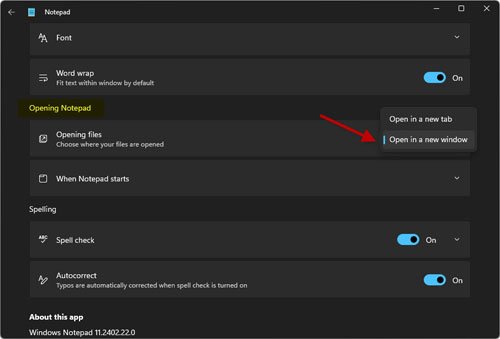
The settings mentioned above will stop the file from opening in many tabs in Notepad, instead it will open your file in a window every time you open it. Now let me explain how to stop files from showing up in Notepad.
How to Stop Notepad Opening Previous File on Windows 11?
1. Open Notepad app, click the settings (cog wheel) and navigate to the “Opening Notepad” option.
2. Click the drop-down menu “When Notepad starts” and select “Open in a new window” option.
3. Restart the Notepad.
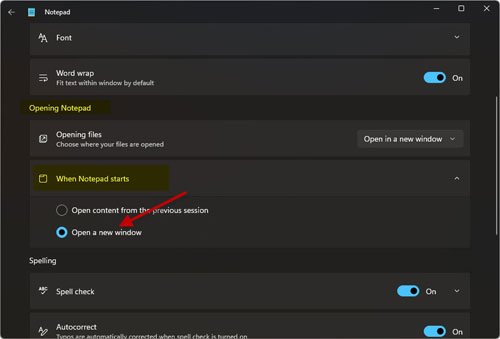
The above settings will prevent files from opening from previous sessions or open a new window. Notepad will open in a new window without restoring the previous content and tab interface.
Note: To restore the default features in Notepad, go to settings and revert the changes mentioned above.

