

From basic image editing functions, MS Paint has slowly been transforming into a comprehensive image editing tool for Windows. In Windows 11, the Paint app has received several advanced features, and among them, the Generative Erase AI is a stands out feature. You can use this AI feature to quickly and precisely remove unwanted objects from your photos.
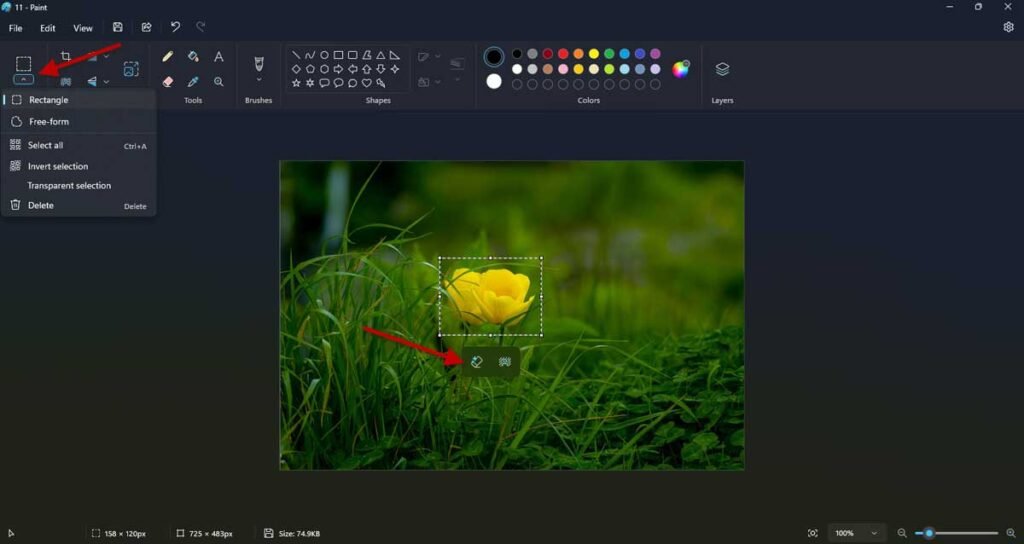
The Generative Erase AI tool in MS Paint utilizes advanced AI technology to help you easily remove unwanted items from your photos. This tool employs sophisticated machine learning algorithms to analyze the surrounding area of the object you wish to remove, and then intelligently predict what the picture would look like if that object wasn’t there.
Now, let us know how to use the Generative Erase AI tool to remove objects from a photo. Before get starts, update the Paint app to latest version (v11.2410.39.0 and up).
How to Use Generative Erase AI Feature in MS Paint
1. Launch the Paint app on your PC and open an image from which you want to remove unwanted objects.
2. Click the Selection icon at the top left and choose a selection tool (see screenshot 1 above).
3. Next, draw a box covering the object that you want to remove.
4. Now, click the Eraser icon that appears below it (see screenshot 1 above).
5. The borders of the box will now glow, and after a few seconds the object will remove from your photo.
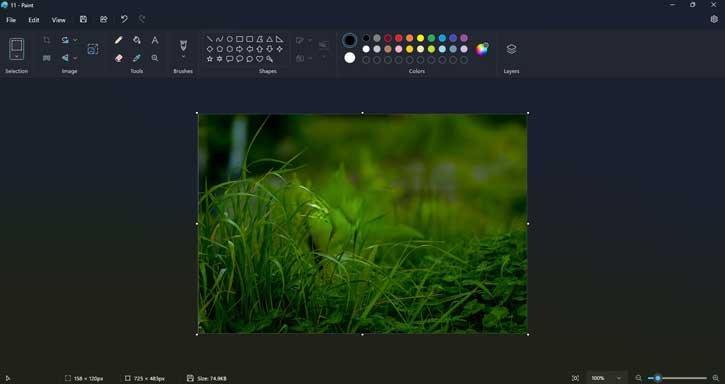
In MS Paint AI analyzes the object and the surrounding pixels of the image. Once it detects the selected shape, it will remove without affecting the overall image quality. The result of the work is a seamless, and natural-looking.
Whether you’re preparing a photo for social media or simply want to remove unwanted objects from your images to look it more pleasing, the MS Paint app in Windows 11 provides a powerful, AI-driven tool to clean up your photos with ease, confidence, and at no cost.

