

Microsoft introduces Gams Assist feature for gaming lovers on Windows 11 via Edge web browser. The new Game Assist feature in Microsoft Edge browser helps users find in-game help, browse the web, listen to music, chat with friends, record the game play, and more without leaving the game.
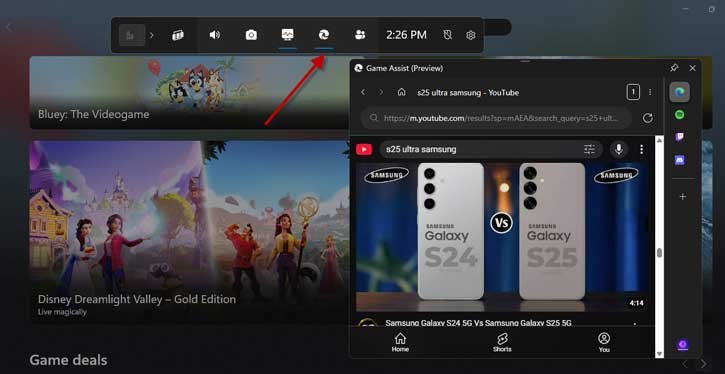
In this guide, let us learn how to enable and use the Game Assist feature of Microsoft Edge browser. This feature will be helpful when you are playing a game and need to browse the web without leaving the game. Previously, it wasn’t possible on Windows 11 PCs, as switching to the browser or another app would cause you to lose access to your game.
The Game Assist feature is available with latest version of Microsoft Edge browser (current version 132), and Windows 11 22H2, 23H2 and 24H2 versions.
How to Enable Game Assist Feature in Microsoft Edge?
1. Open Microsoft Edge browser on Windows 11 and navigate to Settings > Appearance.
2. In Appearance, scroll down, until you see “Game Assist (Preview)” option.
3. Click on the “Install Widget” button next to the Game Assist option.

4. It will install the widget and add the Game Assist feature to Edge browser.
You have now enabled the Game Assist feature in your Edge browser. Here’s how to use it. Please note that it will only work with the Game Bar on your Windows 11 device.
How to Use Game Assist Feature in Windows 11?
1. You can bring up the Game Assist with the Win + G shortcut key.
2. Whenever you are playing a game simply press Win + G keys together to launch the Game Bar on your computer.
3. You’ll see the Game Assist widget along with Game Bar on your screen.
4. You can use the mini browser to surf the web, play music on YouTube and more.
5. To leave the Game Assist press the Win + G shortcut again or on any empty area.
Please be aware that Game Assist is currently a testing feature and may not function as intended. The widget will automatically close after a period of inactivity, and it does not support right-clicking, so you won’t be able to right-click on links, images, or the page.
Conclusion
With the introduction of Game Assist, Microsoft appears to be positioning Edge as a gaming-centric web browser, similar to the popular Opera GX. Along with the browsing feature, the Game Assist feature also offers tips and suggestions for popular games, including Diablo IV, Fortnite, League of Legends, Minecraft, Indiana Jones and the Great Circle, and Marvel Rivals, among others.

