

Windows 11 is a lot secure than previous Windows versions. This operating system will not allow users to install applications from unknown sources inorder to protect your computer, data, and privacy. The built-in SmartScreen and firewall features in Windows 11 will prevent you from installing apps from unknown publishers.
When you try to install apps from an unknown publisher on your Windows 11 PC, you will get a message “Microsoft Defender SmartScreen prevented an unrecognized app from starting. Running this app might put your PC at risk”. However, if you know the app that you want to install is legitimate, there is a simple workaround to install it on your system.
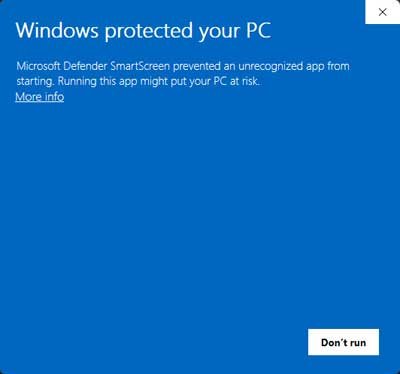
Follow the step-by-step guide to install apps from unknow publishers on your Windows computer.
How to Install Apps from Unknown Publishers on Windows 11
1. Open File Explorer on your Windows 11 PC.
2. Navigate to the app.exe file that Windows prevent you from installing.
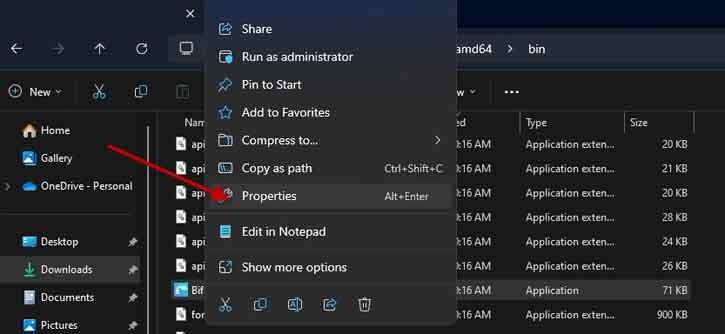
3. Next, right-click on the exe file and select “Properties”.
4. In Properties, under General tab, next to Security check the box marked “Unblock”.
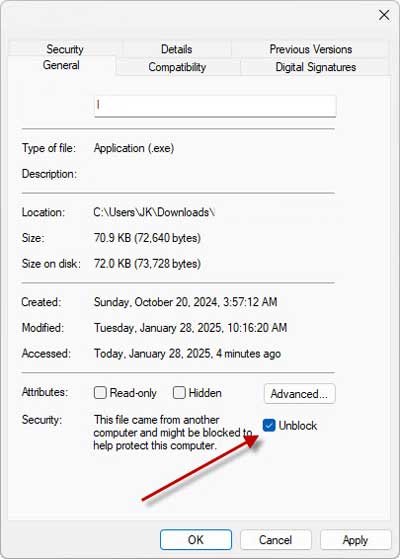
5. Click Apply followed by the OK button to confirm the settings.
6. Now double-click the app.exe file to install it without warning.
The Risks of Installing Apps From Unknown Sources
From repositories like GitHub, you can download many good and legitmate apps, but you should know that not all apps from these places are good. This is because programs from people you don’t know might not be checked carefully as big software.
A big problem with getting apps from places is the chance of getting bad software. These bad programs can hurt your computer, take private information and more.
Before you try to install something from a place you don’t know you should think about the dangers. Always put your computer safety first by making sure that the apps you get are from trusted makers and have been checked.


There is a Run anyway option, which will lets you install the app on your Windows 11 PC?