

Vivaldi is a feature-rich, privacy focussed web browser for desktop and smartphone. It features tracker blocking, ad blocker, private browsing, a free VPN, and a commitment not to collect user data or track browsing habits. The browser is also packed with several productivity tools and offers extensive customization options.
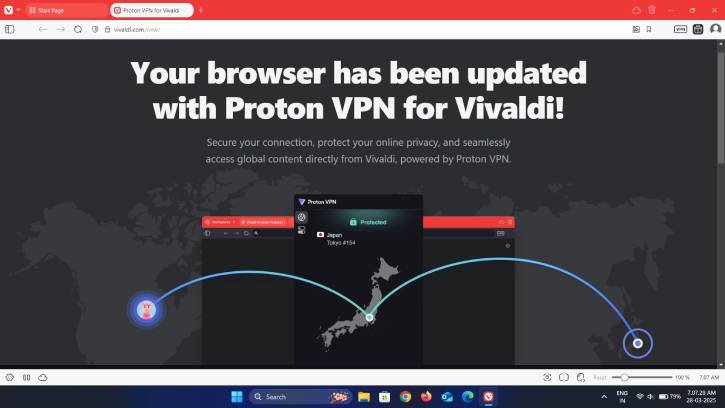
In this guide let us know how to enable and use the builtin Proton VPN on Vivaldi web browser. The latest version for desktop includes a free Proton VPN for improved browsing privacy. This service allows connections to servers in five randomly selected countries, providing reasonable browsing speeds.
A virtual private network (VPN) is a best option if you require complete privacy and security on the internet. It protects users’ privacy while using public Wi-Fi networks, blocks ad trackers from stalking you online, and allows you to access geographically restricted content on the web.
ALSO READ: How to Set a Custom DNS Server in Vivaldi Browser
How to Enable and Use Proton VPN on Vivaldi Browser
1. Install or update your Vivaldi browser to the latest version.
2. You will see a VPN button on the toolbar. If can’t see, right-click the toolbar, select “Customize toolbar,” and drag the VPN button to the toolbar (see screenshot below).
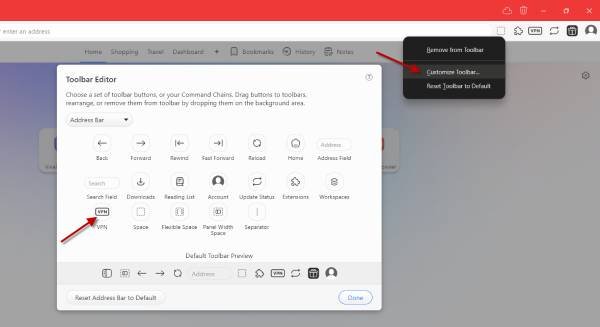
3. Next, click the VPN button and select the “Sign in with Vivaldi” option. If you have not created an account, you can create a new account and log in.
4. Once you are logged in to your Vivaldi account, click the VPN button and then click the “Connect” button. This will instantly connect you to the fastest free Proton VPN server.
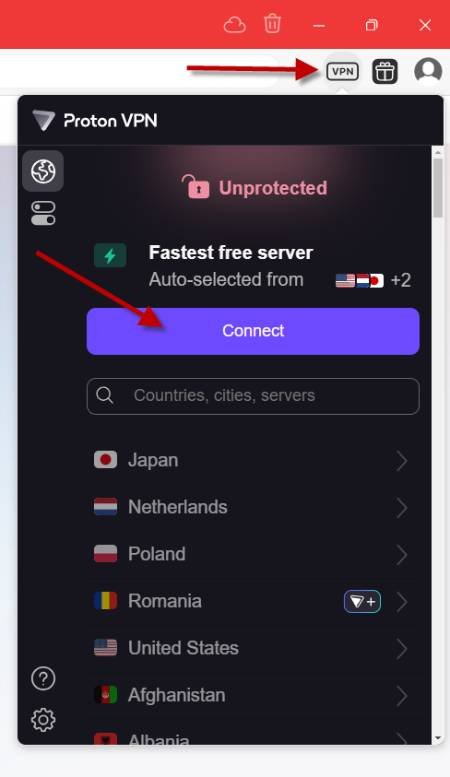
FYI, as of this writing, in the free VPN option the country selection is automatic and randomly chooses one country. If you are looking for improved performance and a wider range of server locations, an upgrade to Proton VPN’s premium service is available for $10 per month.
ALSO READ: How to Enable Firefox VPN in Unsupported Countries (2026 Guide)
That is all how to enable free VPN in Vivaldi browser. The browsers has also features an ad blocker, tracker blocker for better privacy. Also, productivity tools like screenshot, tab tiles, tab stacking, Notes, canlendar, web panel, etc. make Vivaldi, a unique choice for users who prioritize customization, productivity, and privacy in their browsing experience.

