

Creating a single folder on Windows is easy and simple. Right-click in the desired location, select “New,” and then choose “Folder.” But, if you want to create several folders (such as 10 or more), this is a time-consuming and boring task. Fortunately, there are two simple and and easy methods to create multiple folders in Windows.
In this guide, let us learn how to easily create multiple folders and subfolders in Windows 11 at once. There are two ways to do it; either using Command Prompt or creating your own batch file. If you’re looking to create several folders with a click, follow the steps given below.
Create Multiple Folders in Windows 11 with a Single Click
Method 1: Using Command Prompt
1. Open the Command Prompt (Type “CMD” in the Windows Search bar and click on “Command Prompt” from the search results)
2. Now, use the cd command to change to the directory where you want to create the folders. [For example, if you want to create folders in your Downloads directory, type: cd C:\Users\YourUsername\Downloads]
[Replace “YourUsername” with your actual username and Downloads with your actual directory]
3. Next, to create multiple folders at once, use the md command followed by the names of the folders you want to create. [For example, to create Folder1 Folder2 Folder3 Folder4 Folder5 Folder6 Folder7, separated by spaces, type: md Folder1 Folder2 Folder3 Folder4 Folder5 Folder6 Folder7]
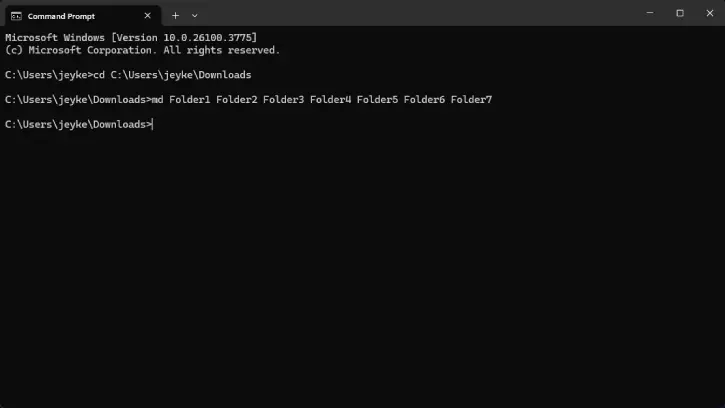
[You can replace “Folder1”, “Folder2”, etc., with any names you prefer.]
4. After executing the command, close the Command Prompt and navigate to the directory where you created the folders. You should see all the new folders there.
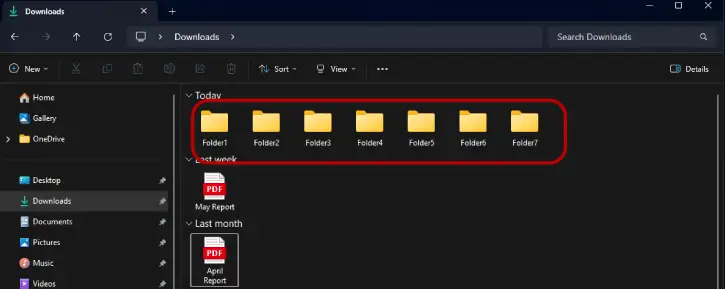
That’s it! You’ve successfully created multiple folders with a single command.
ALSO READ: Create Emergency Off Button For Closing All Running Apps Instantly on Windows 11
Method 2: Creating a Batch File
Creating several folders at once in Windows 11 can be done quickly by creating a simple batch file.
1. First, open Notepad app on Windows 11, and type the names of the folders you want to create, each on a new line.
For example:
Folder1
Folder2
Folder3
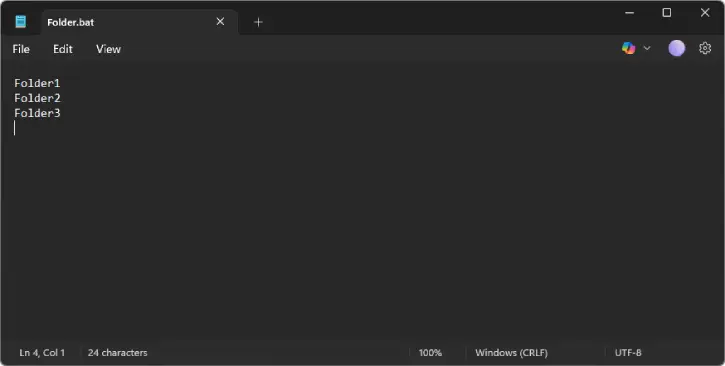
2. Next, click on File in the menu and select Save As.
3. In the “Save as type” dropdown, choose All Files.
4. Name your file with a .bat extension, like CreateFolders.bat.
5. Now, choose a location to save it, such as your Desktop, and click Save.
6. Next, right-click on the saved .bat file and select Edit. Add the following line at the top:@echo off
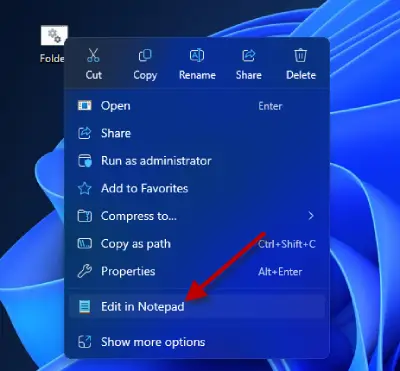
[This line ensures that the commands are executed without displaying them in the command prompt.]
7. Now, below the @echo off line, add the following command: mkdir Folder1 Folder2 Folder3
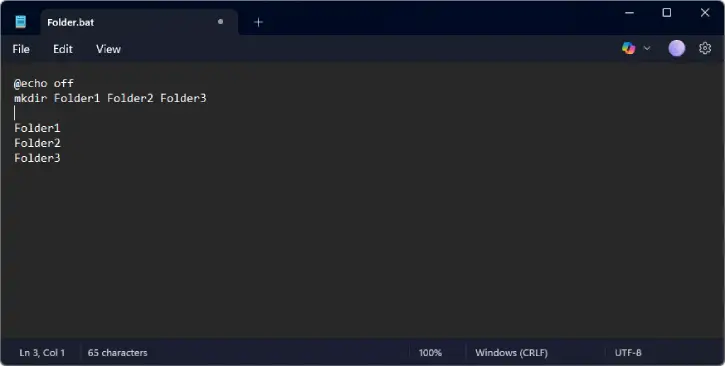
[Replace Folder1, Folder2, and Folder3 with the names of the folders you want to create.]
8. Double-click the .bat file you created. This will execute the script and create the specified folders in the same location as the batch file.
And that’s it! Whenever you want to create multiple folders, and sub folders in Windows 11, you can use the above guide to make fast and simple.

