

Mozilla Firefox now bring an option to sign PDF documents within the browser. This new feature eliminates the need of downloading contracts, letters, or forms, print them out, sign them, and then convert to PDF for submission. You can easily add a digital signature to PDF document by typing, drawing, or uploading a photo of your hand written signature.
In this guide, let us learn how to add digital signature in PDF documents using Firefox browser. The built-in PDF viewer in Firefox has several features, including edititing the document by adding annotations, highlights, text, and images, including the new sign PDF documents option.
How to Sign PDF Documents Using Firefox Browser
1. Open a PDF file in Firefox browser. You can do this by dragging the PDF file into the browser window or by right-clicking the file and selecting ‘Open with’ and then choosing Firefox.
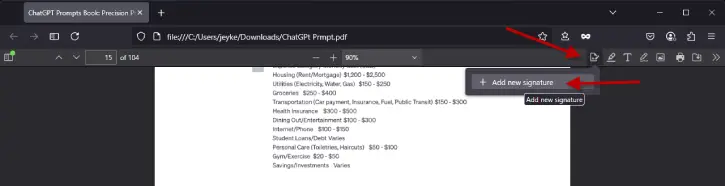
2. Next, click the ‘Add signature’ button in the top-right corner of the PDF viewer (it looks like a pen signing a document).
3. Then, click ‘Add signature’ and choose ‘Add new signature.’
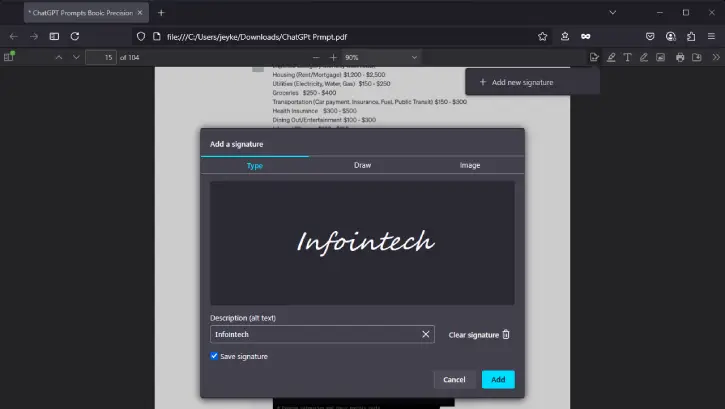
4. You have three options to add your signature: Type it (Firefox will make it look handwritten), draw it with your mouse, or upload a picture of your signature.
5. If you make a mistake, click ‘Clear signature’ to start over.
6. You can also add a description for your signature to help you remember it. Once done, check box ‘Save signature’, then click ‘Add’ to confirm.
7. To place your signature in the document, click the ‘Add signature’ button again and select the signature you created. You can drag it to where you want it on the page and resize it if needed.
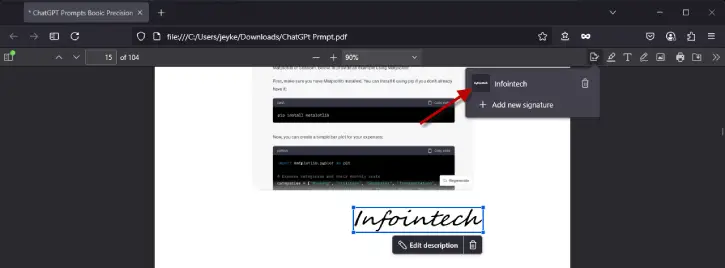
8. If you want to remove the signature, click the trash can icon next to ‘Edit description’ to delete it.
ALSO READ: How to Enable Brave’s Adblock Engine in Firefox
Note: If you don’t see the new ‘Add Signature’ button, you can enable it manually. Here’s how to do it:
How to Enable Sign PDF Documents Option in Firefox Browser?
1. Type about:config in the browser’s address bar and press Enter.
2. Click the ‘Accept the Risk and Continue’ option to proceed.
3. Next, look for the preference pdfjs.enableSignatureEditor.
4. Double-click pdfjs.enableSignatureEditor to change its value from ‘false’ to ‘true’.
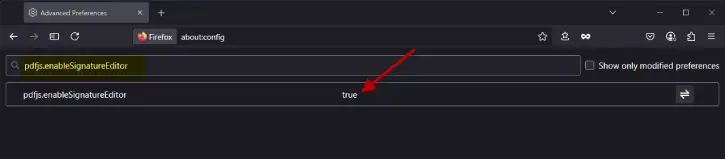
5. Reload the PDF viewer, and you’ll now see the signature option.
Why Should You Use a Signature on Documents?
Using signature on a document serves several important purposes: it verifies the ownership of the file (authentication), ensures that the document has not been altered (integrity), and restricts unauthorized reproduction.
With a digital signature, you can be confident that your important files—such as contracts, reports, and plans—come from the intended source and remain unmodified.
This is particularly useful for adding your signature to PDF forms, contracts, and letters, especially since it saves your personal signature for future use.

