

Wireless earbuds have become increasingly popular in recent years, offering a convenient and hassle-free way to enjoy your favourite music from streaming services, TV, smartphone, and other gadgets. One of the popular wireless earbuds is from Samsung and it offers premium sound quality with ANC. You can connect your earbuds to your TV to enjoy high quality sound. Here is how to connect Samsung Galaxy buds to your Sony TV.
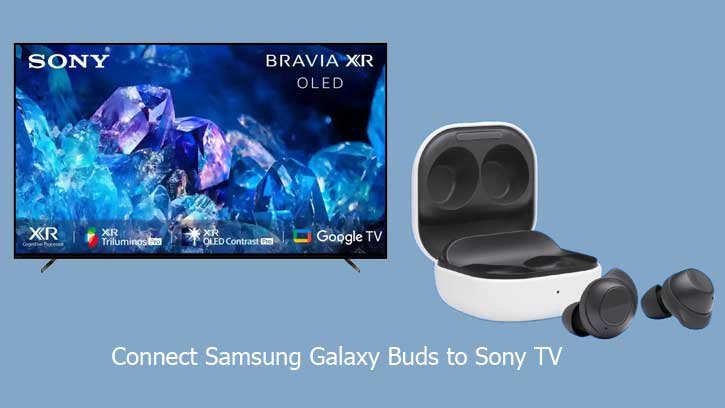
Table of Contents
Connecting Samsung Galaxy Buds to Sony TV
Connecting your Samsung Galaxy Buds to a Sony TV is a straightforward process that allows you to enjoy your favorite shows and movies with high-quality audio. Follow these simple steps to pair your Galaxy Buds with your Sony TV. However, first ensure that your Sony TV supports Bluetooth by going to the settings menu. Look for the Bluetooth option and ensure it is enabled.
Step 1: Put your Galaxy Buds in pairing mode
First, put your Samsung Galaxy Buds into pairing mode. To do this, place the earbuds into the case and keep the case open.
Step 2: Connect your Galaxy Buds to the Sony TV
Turn on your Sony TV and you will see the pairing options for the Galaxy Buds on the screen. Select the Connect option to connect earbuds to TV.
Step 3: Connect Galaxy Buds to the Sony TV Manually
If the pairing options do not appear automatically on your TV, press the Home button on your TV’s remote control and go to the Settings menu. Select the option to search for nearby devices, and your Galaxy Buds should appear on the list. Choose your Galaxy Buds from the list and confirm the connection.
Once the connection is established, you should be able to enjoy the audio from your Sony TV through your Samsung Galaxy Buds. Adjust the volume on your Galaxy Buds as needed for the best audio experience.
Conclusion
Please note that the steps may vary slightly depending on the model of your Sony TV and the version of your Galaxy Buds. Refer to the user manuals for both devices for more specific instructions.

