

Google Docs is the best free alternative to Microsoft Word, offering every feature you need in a word processor. The main advantages of AI powered Google Docs include the ability to create and edit documents from any browser, access your documents from any location, and easily share and collaborate on documents with others. In this guide, we’ll learn how to digitally sign a Google Doc.
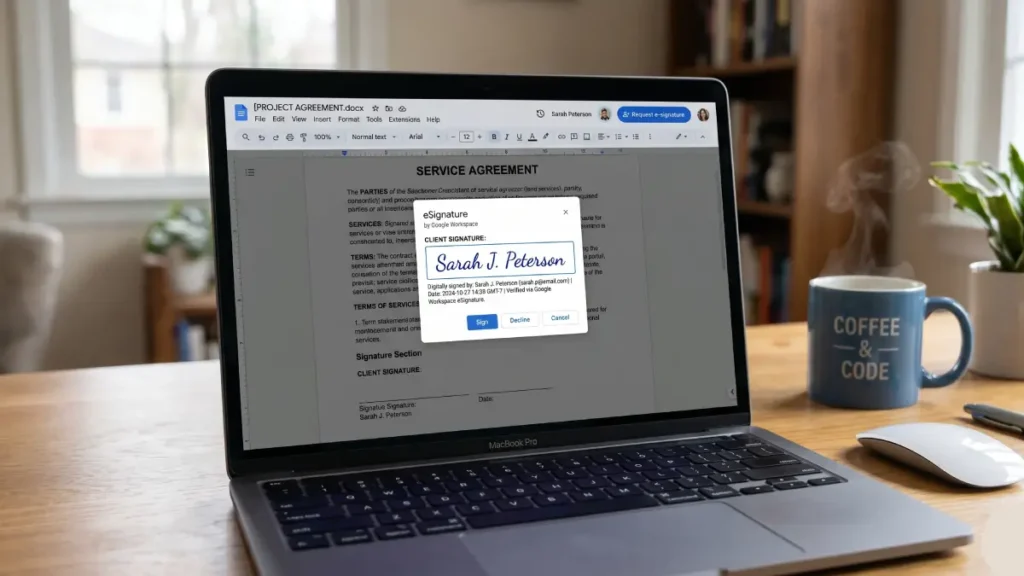
Like Microsoft Word, Google Docs makes it surprisingly easy to add your signature in multiple ways, depending on your needs and the document type. Whether you’re signing a casual form or a legally binding contract, there’s a method that works for you.
Google Docs has a built-in feature to sign a document, which you can access by going to Tools > eSignature. However, this feature is currently available only to Google Workspace subscribers. If you don’t have a subscription and are using the free version, you can use the following 4 methods for signing a document.
4 Methods to Digitally Sign a Google Doc
Method 1: Using Google’s Built-In Scribble Signature
The is the simplest way to add a signature to your Google Doc. It lets you draw your signature directly in the document using Google Docs Scribble feature. Here is how to use this tool.
1. First, open your document in Google Docs and position your cursor where you want the signature
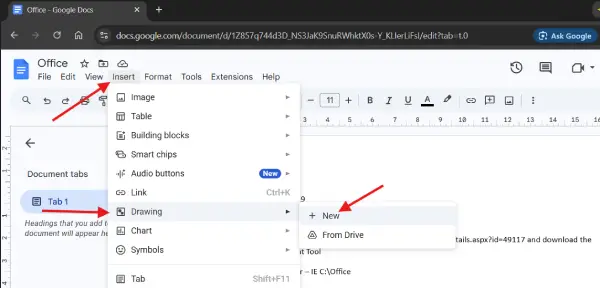
2. Click Insert tab > select Drawing > New
3. In the drawing toolbar, click the Pen icon and select Scribble tool.
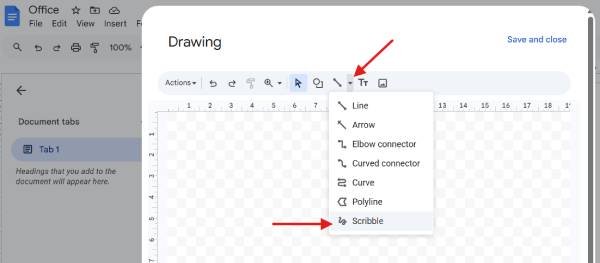
4. Draw your signature in the canvas area, click Save and close
5. You can now resize your signature as per your requirement.
This method works perfectly for informal documents, internal approvals, or casual sign-offs. It’s quick, free, and requires no additional tools.
Method 2: Uploading a Signature Image
If you already have a digital signature image – perhaps scanned from a physical signature or created in another tool – uploading it to Google Docs is straightforward.
1. Click the Insert tab and select the Image option.
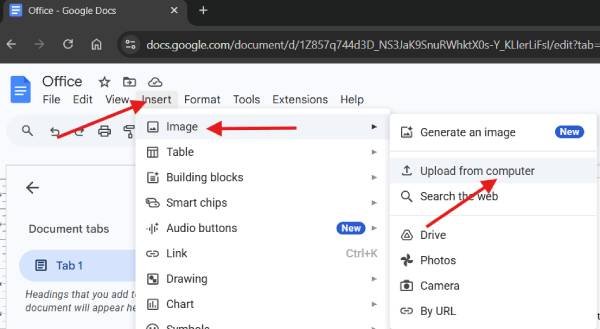
2. Choose Upload from computer and select your signature file
3. Resize and position the image where needed
4. Right-click the image and select Lock image to prevent accidental movement
This approach gives your documents a more professional, polished look compared to hand-drawn signatures. It’s ideal for business documents, formal letters, and branded communications.
Method 3: Using Third-Party eSignature Extensions
For legally binding signatures on contracts and formal agreements, third-party extensions offer enhanced security and legal compliance. For example, you can use DocuSign, HelloSign (Dropbox Sign), SignRequest, or Adobe Sign extension for Docs.
How to Add an eSignature Extension
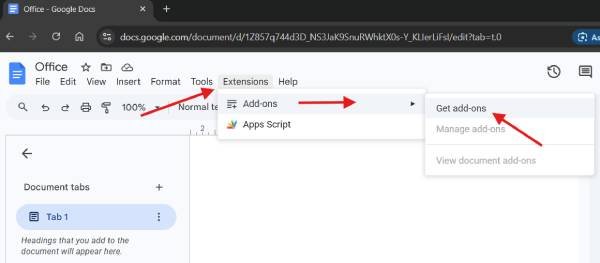
2. Open your Google Doc, click Extensions > Add-ons > Get add-ons
2. Search for your chosen eSignature tool (e.g., DocuSign, HelloSign)
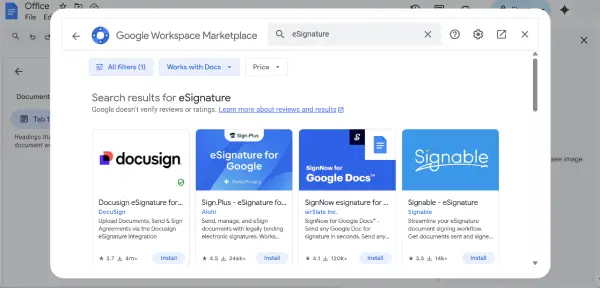
3. Click Install and grant the necessary permissions
4. Follow the extension’s prompts to sign your document
These extensions create a secure, tamper-proof signature record that holds legal weight – essential for contracts, agreements, and official documents.
Method 4: Drawing a Signature Directly in the Document
For a more integrated approach, you can draw directly on your Google Doc without using the separate Drawing tool.
How to Draw a Direct Signature
Some third-party tools (like SignRequest or Zoho Sign) allow you to draw your signature directly in designated signature fields within your document, streamlining the process even further.
How to Choose the Right Signature Method?
Use Scribble or Upload an Image if:
- The document is informal or internal
- You don’t need legal enforceability
- You want the fastest, simplest option
Use an eSignature Extension if:
- The document is a contract or legal agreement
- Multiple parties need to sign
- You need an audit trail and proof of signing
- Legal compliance is required
Final Thoughts
Google Docs makes it easy to add signatures for any document types. Whether you’re signing off on a casual memo or executing a formal contract, you have flexible options that require minimal effort.

