

If you’ve ever worked with justified text in Microsoft Word, you’ve probably noticed something annoying: sometimes a line will have huge gaps between words, making it look unprofessional and hard to read. It’s not a bug in your document—it’s actually Word doing exactly what you told it to do, just a little too aggressively.
Here’s what’s happening. When you use justified alignment, Word spreads out the spaces between words to make each line stretch perfectly from the left margin to the right margin. Most of the time, this looks fine. But there’s one specific scenario that trips up the software: when you end a line with a soft line break (created by pressing Shift+Return instead of just Return).
Word treats soft line breaks the same way it treats regular line endings, so it still tries to justify the text. The result? Weirdly stretched spacing that makes your document look broken.
Table of Contents
Fix Problem With Justified Text in Word (It’s Easier Than You Think)
The good news is that fixing this takes less than a minute. Here’s what to do:
1. Open the File menu in the top left corner
2. Click Options at the bottom of the menu
3. Select Advanced from the left sidebar
4. Scroll down until you find ‘Layout options for‘
5. Click the dropdown menu and choose whether you want this to apply to all future documents or just the one you’re currently working on
6. Check the box that says ‘Don’t expand character spaces on a line that ends with Shift+Return’
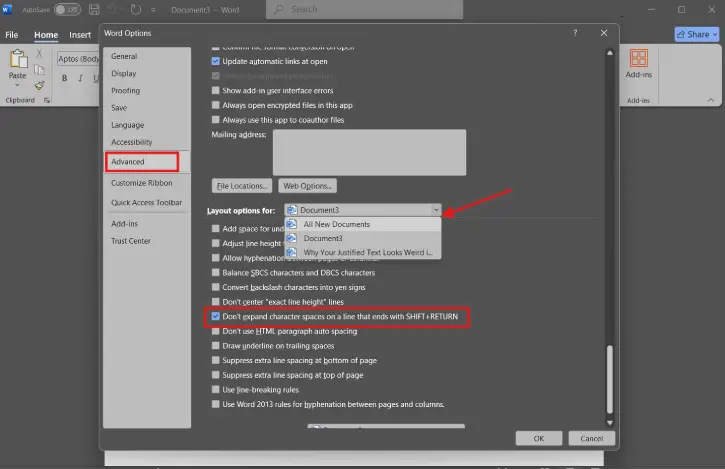
7. Click OK
That’s it. Word will now leave your soft line breaks alone and stop trying to justify them, giving your document a much cleaner, more professional appearance.
ALSO READ: How to Create a Hanging Indent in Word and Google Docs
FAQ
Q: Will this change affect my existing documents?
A: It depends on which option you choose in the dropdown menu. If you select “This document,” only the current file is affected. If you choose “All documents,” the setting applies to every new document you create going forward.
Q: What’s the difference between Shift+Return and just Return?
A: Return creates a hard line break (a new paragraph), while Shift+Return creates a soft line break (a line break within the same paragraph). Soft breaks are useful when you want line breaks without the extra spacing that comes with a new paragraph.
Q: Does this setting work in other versions of Word?
A: This fix is available in modern versions of Word (2016 and later), though the exact menu locations might vary slightly depending on your version.
Conclusion
Justified text can make your documents look polished and formal, but only when it’s done right. The stretched spacing issue is one of those quirks that catches a lot of people off guard, especially if you’re writing content that relies on manual line breaks. The good news? This fix is built right into Word, and once you enable it, you’ll never have to deal with awkward spacing again. Your readers (and your eyes) will thank you.

