

Firefox has a built-in free VPN that helps you browse the internet by hiding your IP address and location. To turn it on, click the VPN button in the top-right corner of the browser, then select Turn on VPN. However, you’ll need to turn on the VPN each time you open the browser.
If you want Firefox’s built-in VPN to turn on automatically whenever you launch the browser, you can enable it through the browser’s Configuration Editor. Firefox doesn’t offer a direct setting for automatically activating the VPN, but this workaround lets you turn it on at startup.
Why Doesn’t Firefox Automatically Turn On Its Built-In VPN?
Mozilla, the company behind Firefox, has a couple of reasons for not turning its VPN on by default.
First, not everyone wants to use a VPN. It can sometimes interfere with certain websites and services, especially online banking. If the VPN were enabled automatically, some users might suddenly have trouble accessing services that had always worked normally.
Second, Firefox’s built-in free VPN has a monthly data limit of 50 GB. That may sound generous, but people who stream a lot of online videos could use it up surprisingly quickly without realising it.
Steps to Turn On Firefox’s Built-in VPN Automatically
1. Type about:config in the address bar and press Enter.
2. Click the ‘Accept the Risk and Continue’ button.
3. In the ‘Search preference name’ box, type browser.ipProtection.autoStartEnabled
4. The preference will appear in the pane below. Click the adjacent button to flip the value from False to True.
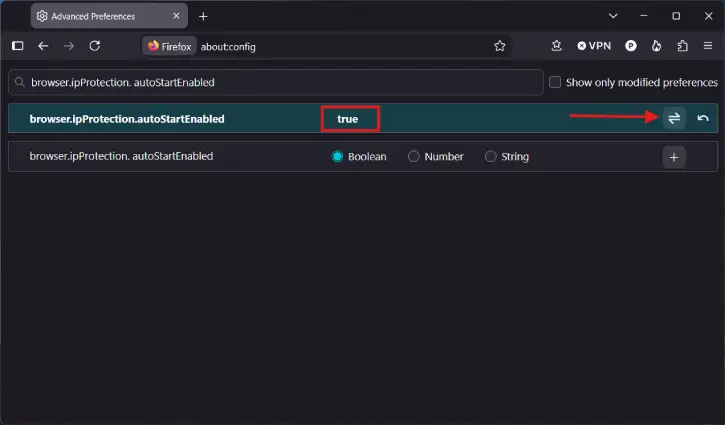
5. Next, type browser.ipProtection.features.autoStart and change its value from False to True.
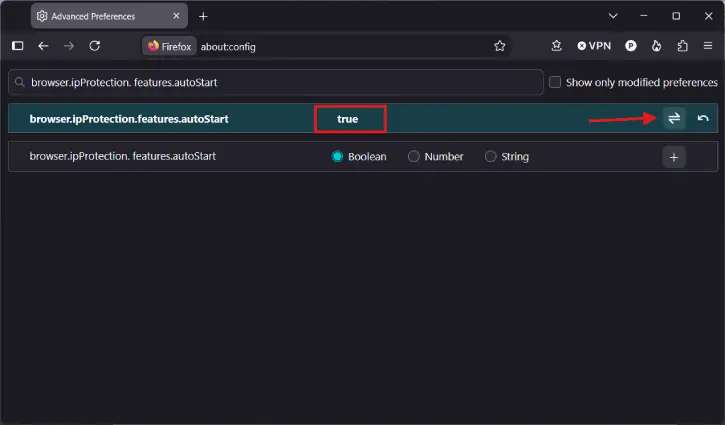
6. From now on, when you start Firefox, the VPN will be switched on automatically.
Note: If you experience connection problems, simply return to the same preferences and set both options back to False.
Final thoughts
Firefox’s built-in VPN can be useful when you want an extra layer of privacy without installing a separate app. Enabling automatic startup through about:config saves you from turning it on manually each time you open the browser. However, remember that the VPN may affect some websites and services, and its monthly data allowance can be used quickly by streaming or downloading large files.

